As a salesperson, collecting Google Reviews after closing a sale is a great way to showcase your performance and build trust with future customers. Dealer Studio makes it easy to send a Google Review request directly to your customer.
Follow the steps below to send a Google Review request.
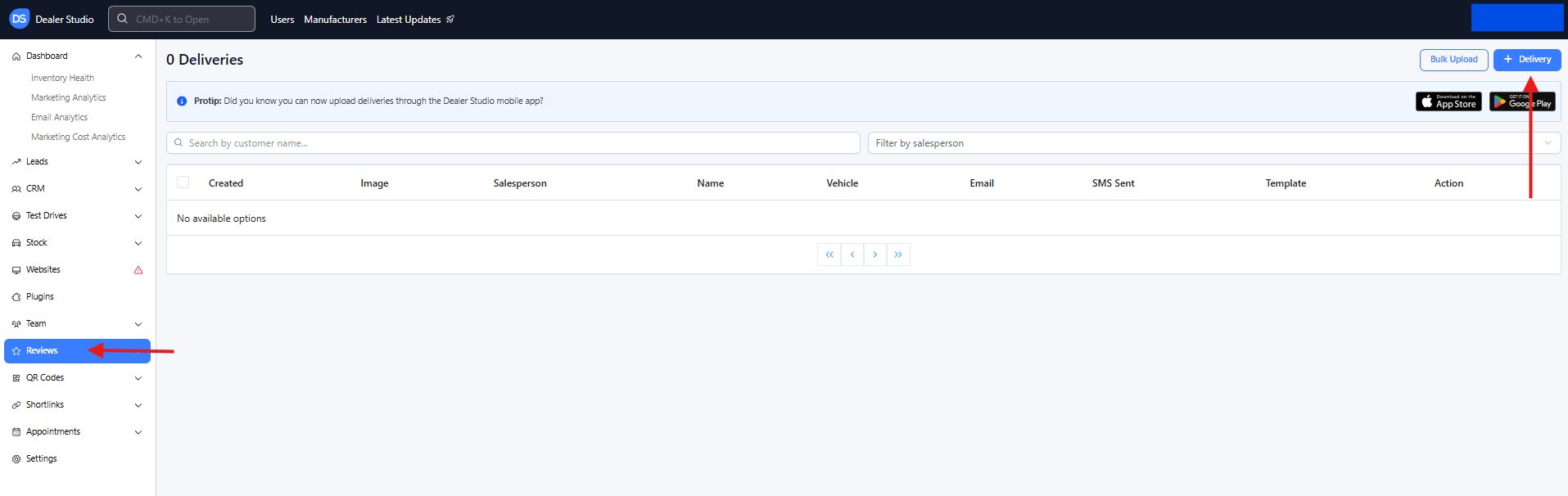
Step 1: Navigate to Reviews
-
Log in to the Dealer Studio dashboard.
-
From the left-hand sidebar menu, select Reviews.
-
In the top-right corner of the page, click + Delivery to create a new review request.
Step 2: Select or Create a Customer
-
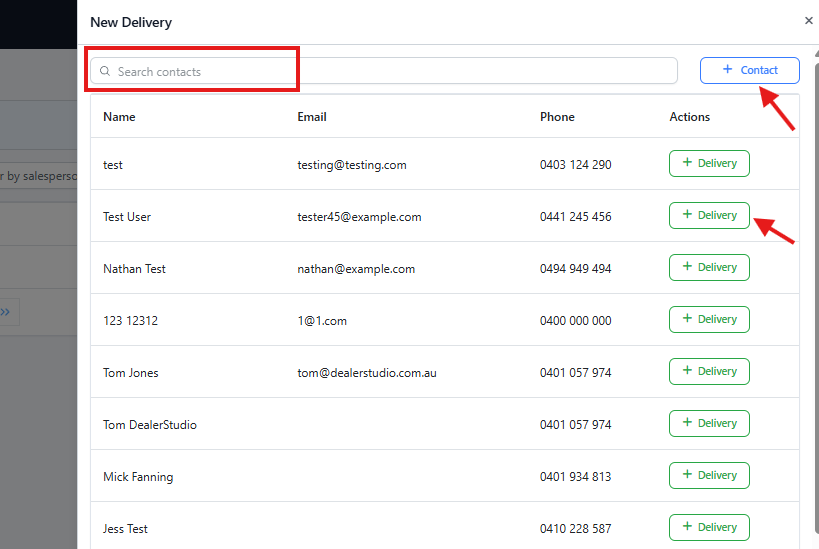
Search for the customer if their contact details already exist in the system.
-
If the customer does not exist, click + Contact to create a new customer record.
-
Once the customer is selected, click + Delivery to proceed.
Step 3: Complete the New Delivery Form
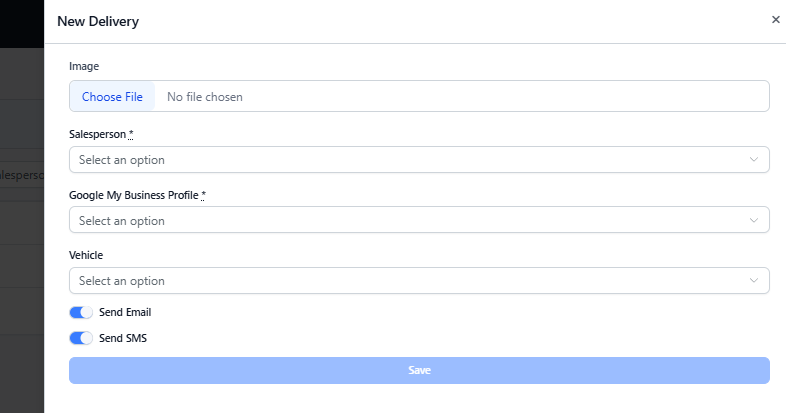
In the New Delivery form, fill in the relevant details:
-
Upload images related to the sale (optional).
-
Select the salesperson associated with the sale.
-
Choose the correct GMB (Google My Business) profile for the dealership.
⚠️ Important: This is the Google profile where the customer will leave their review. Make sure you select the correct dealership’s GMB profile.
-
Select the vehicle involved in the sale (optional).
Step 4: Send the Review Request
-
Choose how you would like to send the review request:
-
Email
-
SMS
-
Or both
-
-
Review the details to ensure everything is correct.
-
Click Save to send the Google Review request.
Once sent, your customer will receive a link prompting them to leave a Google Review for your dealership and sales experience.