Adding features to your vehicle listings in Dealer Studio improves the customer experience and delivers important SEO and marketing benefits.
Features such as Bull Bar, Roof Racks, 7 Seats, or Seat Heating help:
-
Customers quickly find vehicles that match their needs
-
Improve visibility on your dealership website
-
Enhance listing performance on third-party platforms like Carsales and Gumtree
-
Support AI-generated dealer comments by providing richer vehicle data
📹 A video walkthrough is available at the bottom of this article.
Step-by-Step Guide
Step 1: Navigate to Stock
-
Log in to the Dealer Studio Dashboard.
-
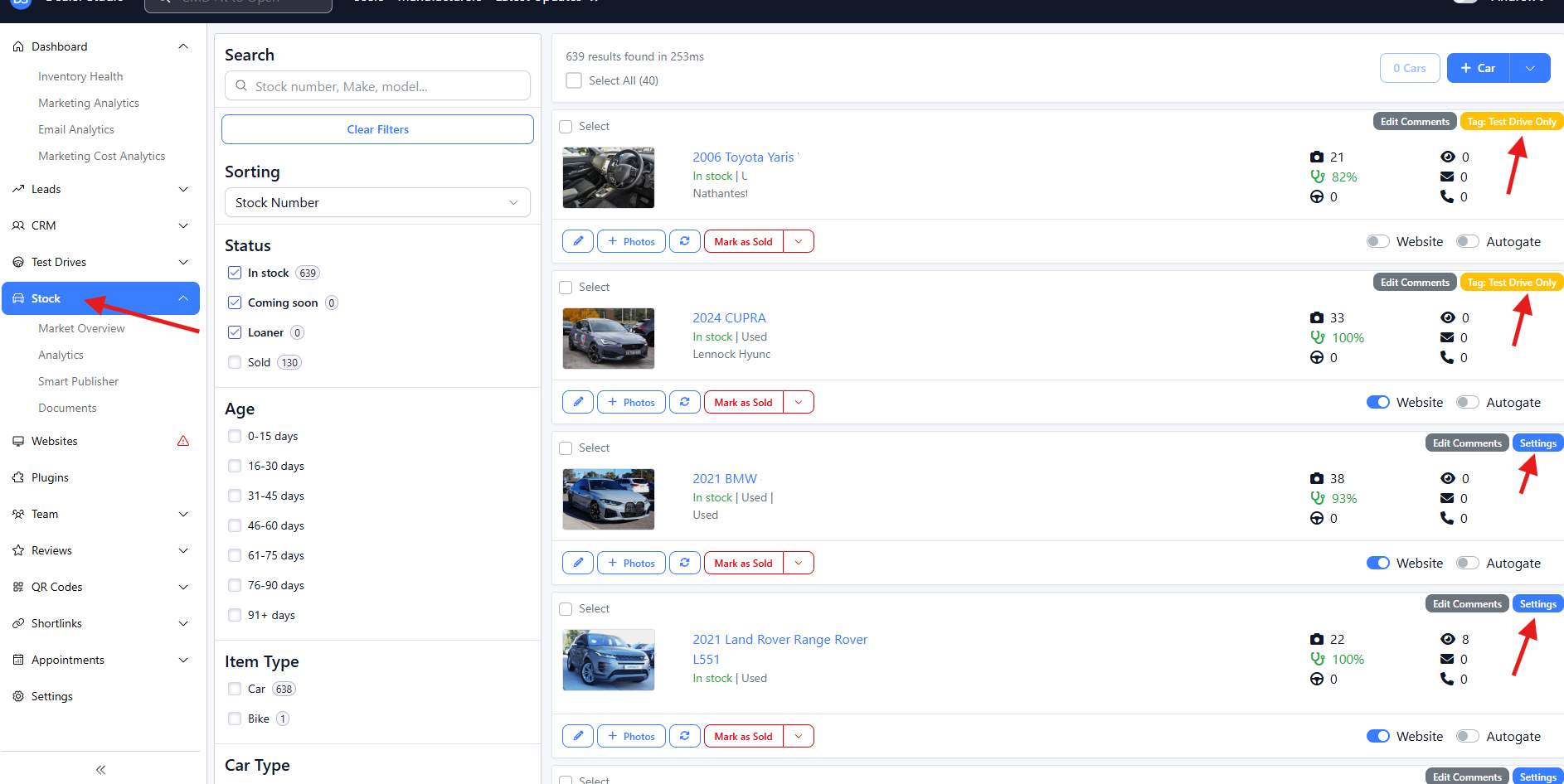
Use the sidebar to navigate to Stock.
This page displays all vehicles currently in your inventory.
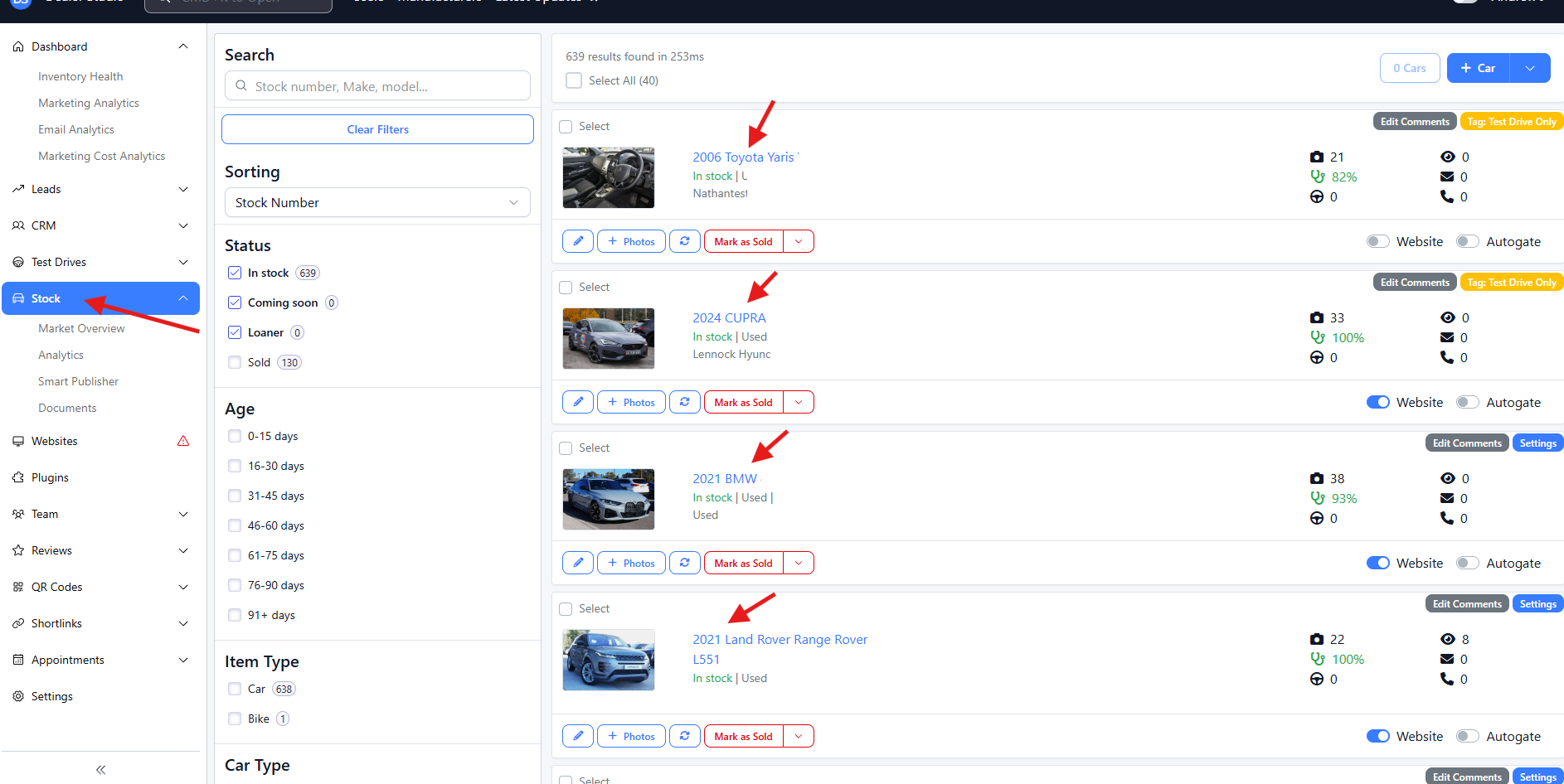
Step 2: Select a Vehicle
-
Locate the vehicle you want to update.
-
Click on the listing to open it.
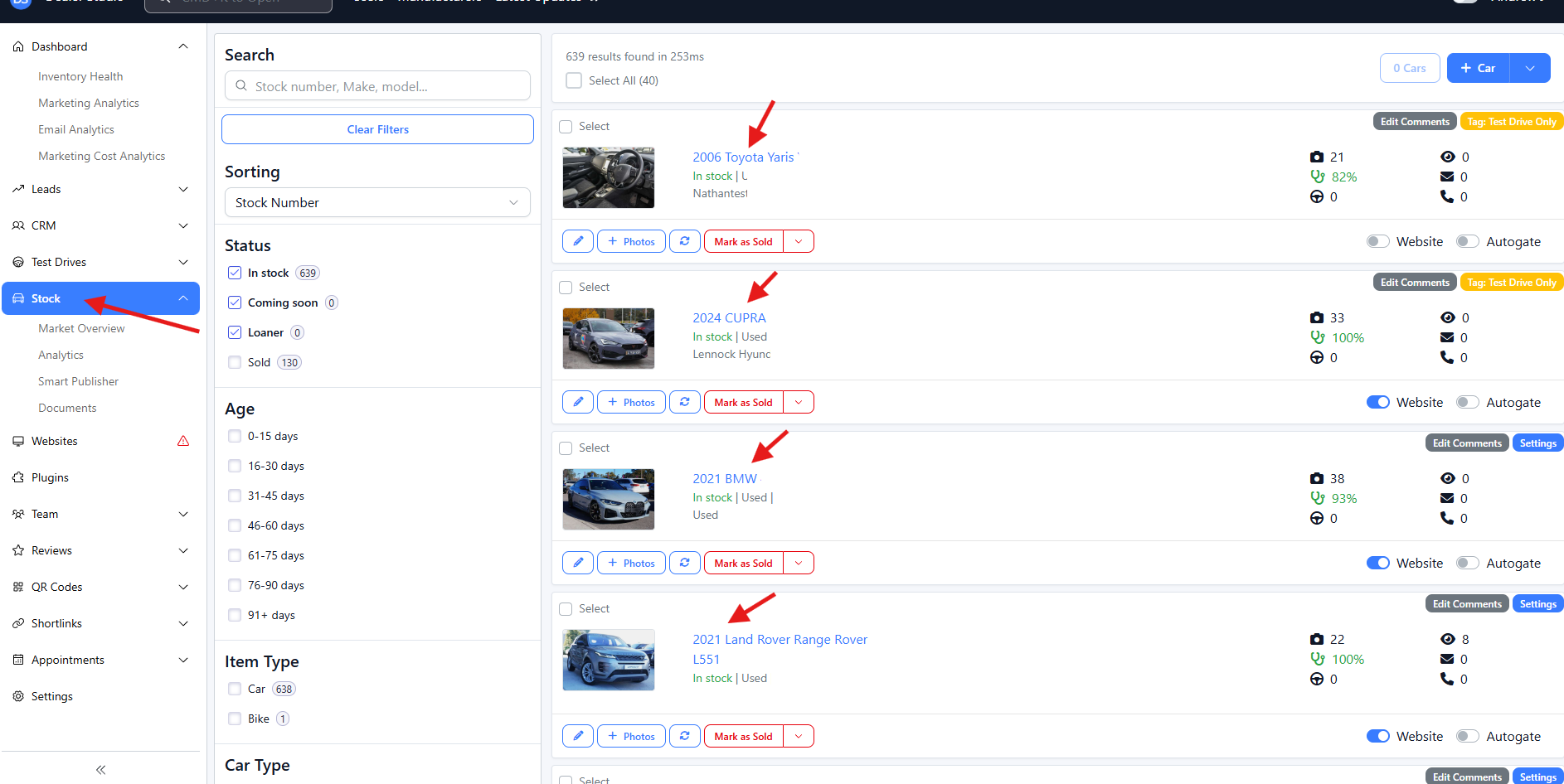
Step 3: Add Features to the Vehicle
-
Within the vehicle listing, click Edit and locate the Tag dropdown option.
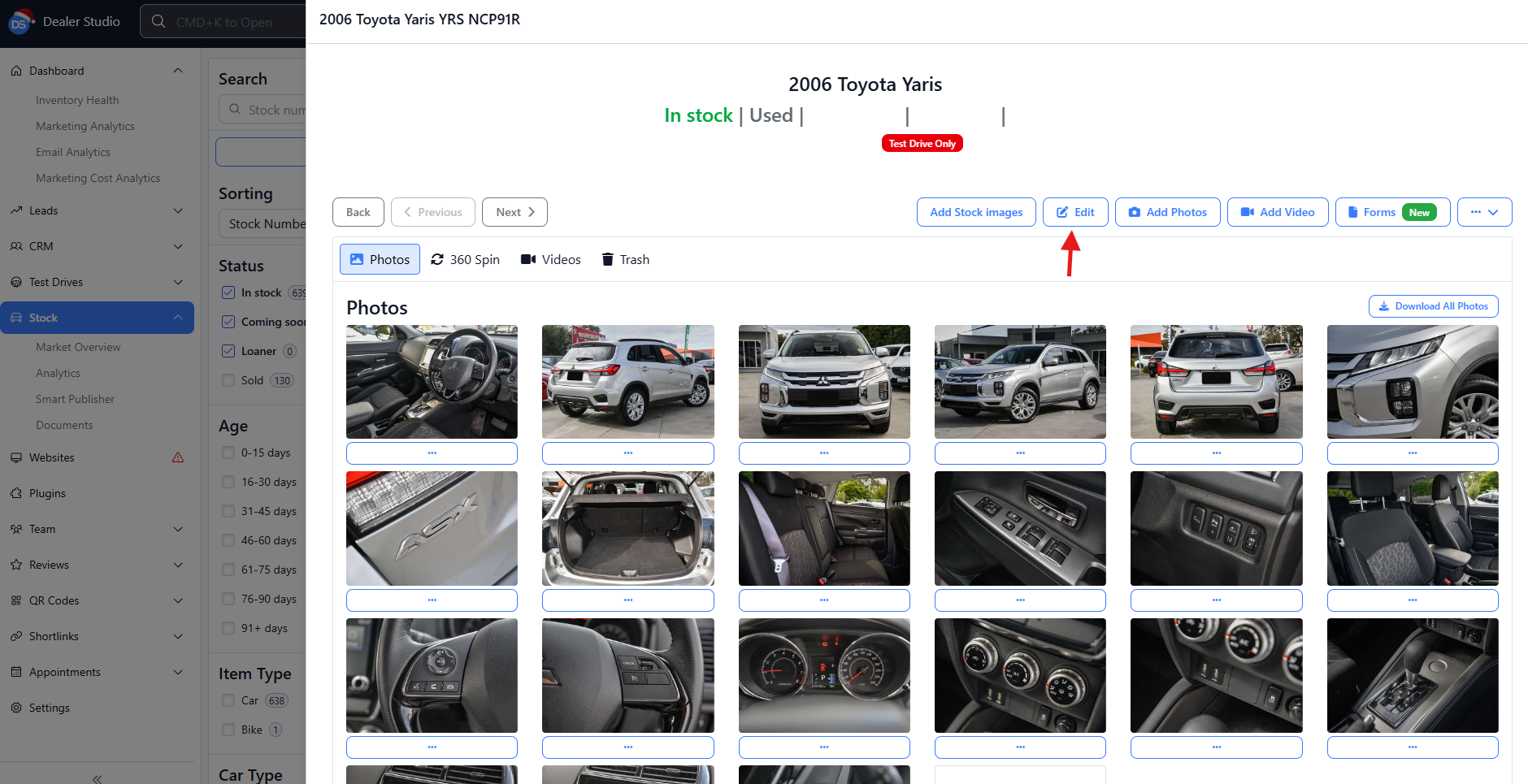
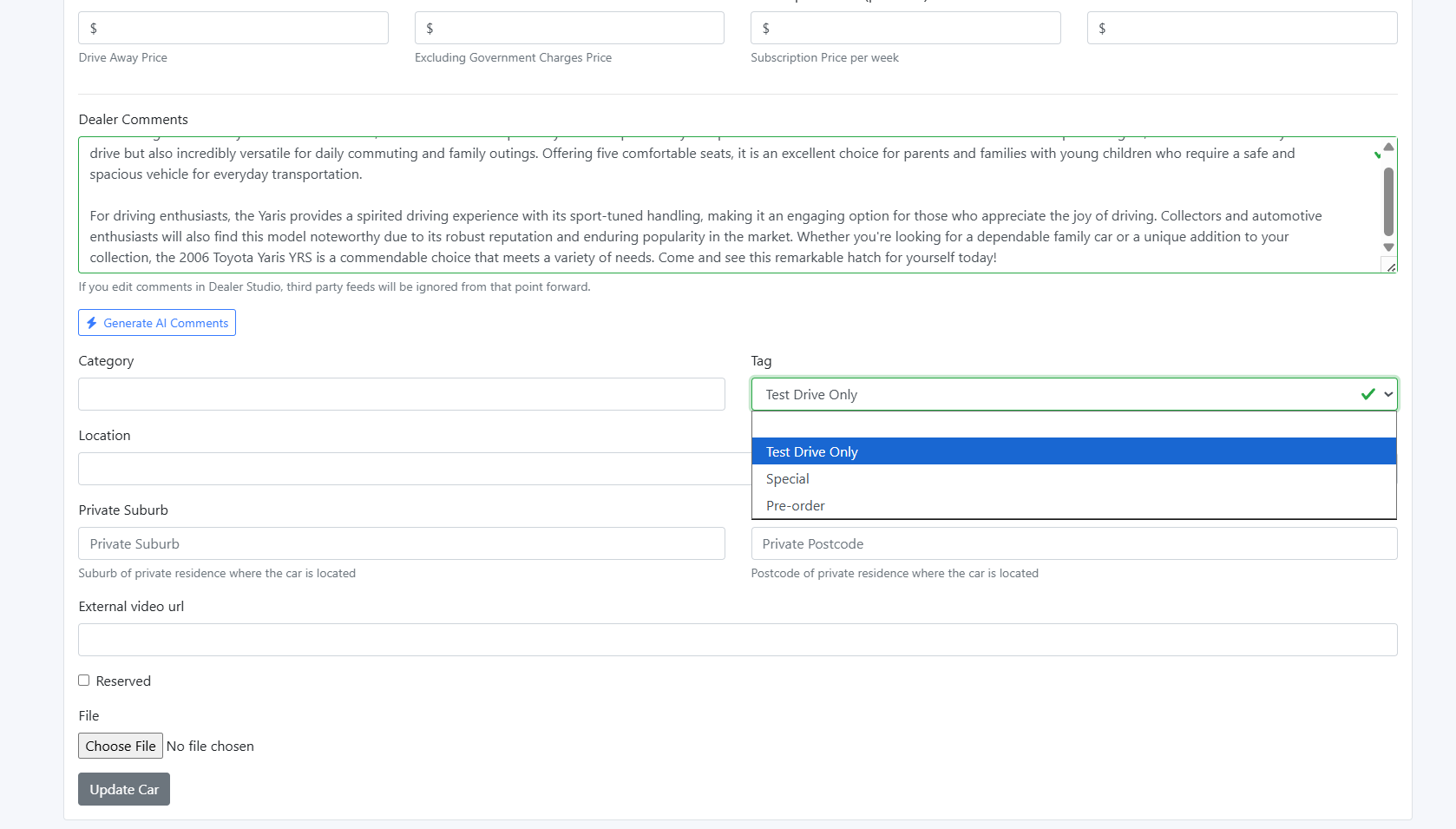
-
Click Update Car to save your changes.
-
Alternatively, you can select + Features from the stock details page.
This opens the feature selection panel: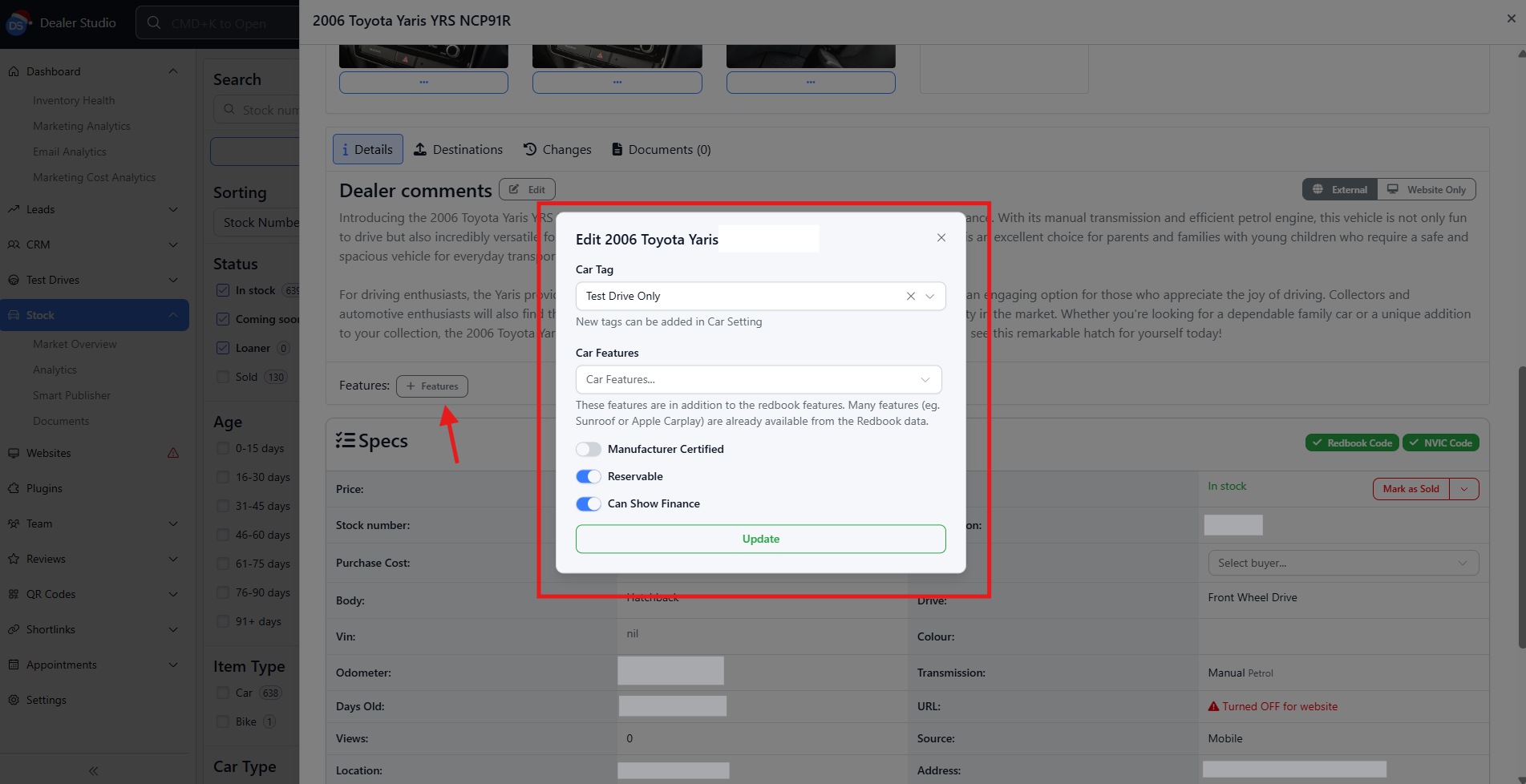
👉 Tips: Quick-add Features to the Vehicle
-
Within the vehicle listing, click location the vehicle you want to update.
-
Select Tag to change/update features, or select Settings to add new features.
Step 4: Choose or Create Features
-
Select the features that apply to the vehicle from the available list.
- Examples: Bull Bar, Roof Racks, 7 Seats, Seat Heating
-
If required, create a new feature by entering a custom feature name.
👉 Only add features that accurately describe the vehicle to avoid customer confusion.
Step 5: Review and Save
-
Review the selected features for accuracy and relevance.
-
Click Update to attach the features to the vehicle listing.
Step 6: Verify Feature Display
After saving:
-
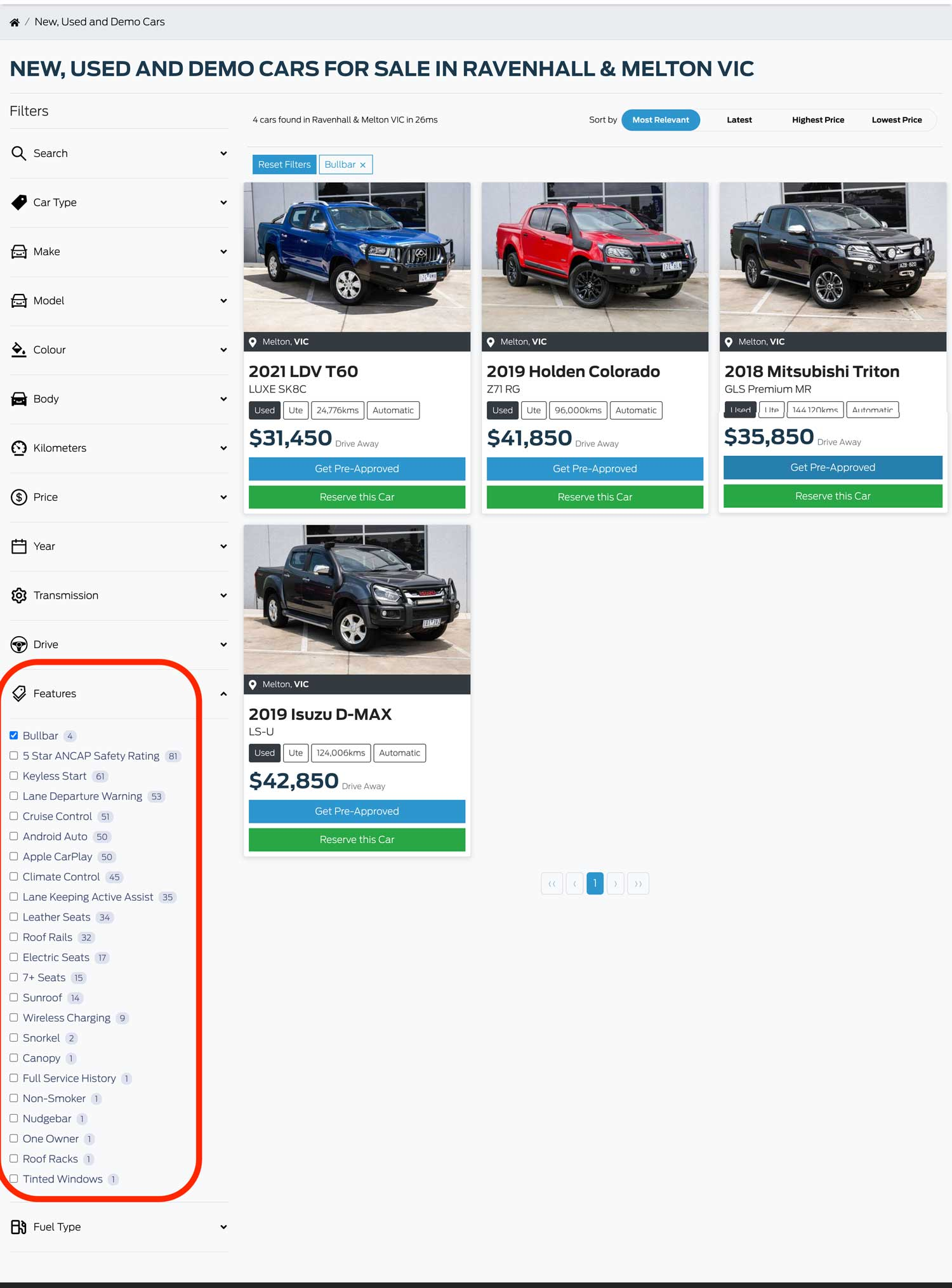
View the vehicle’s listing on your dealership website.
-
Confirm that all selected features are:
-
Displayed correctly
-
Easy for customers to find and understand
-
This ensures the features are visible both on your website and any connected third-party platforms.
Best Practices for Adding Features
-
Use clear, commonly understood feature names
-
Avoid duplicating similar features (e.g. “Seat Warmer” vs “Seat Heating”)
-
Add all applicable features to maximize SEO and search filtering
-
Keep features up to date when stock changes
That’s it! 🎉
You’ve successfully added features to a car listing in Dealer Studio