Dealer Studio allows you to generate AI-powered dealer comments for your vehicle listings, saving time while keeping descriptions consistent and engaging.
This guide walks you through setting up your value propositions and generating AI comments on a car listing.
Step 1: Access Dealer Studio Settings
-
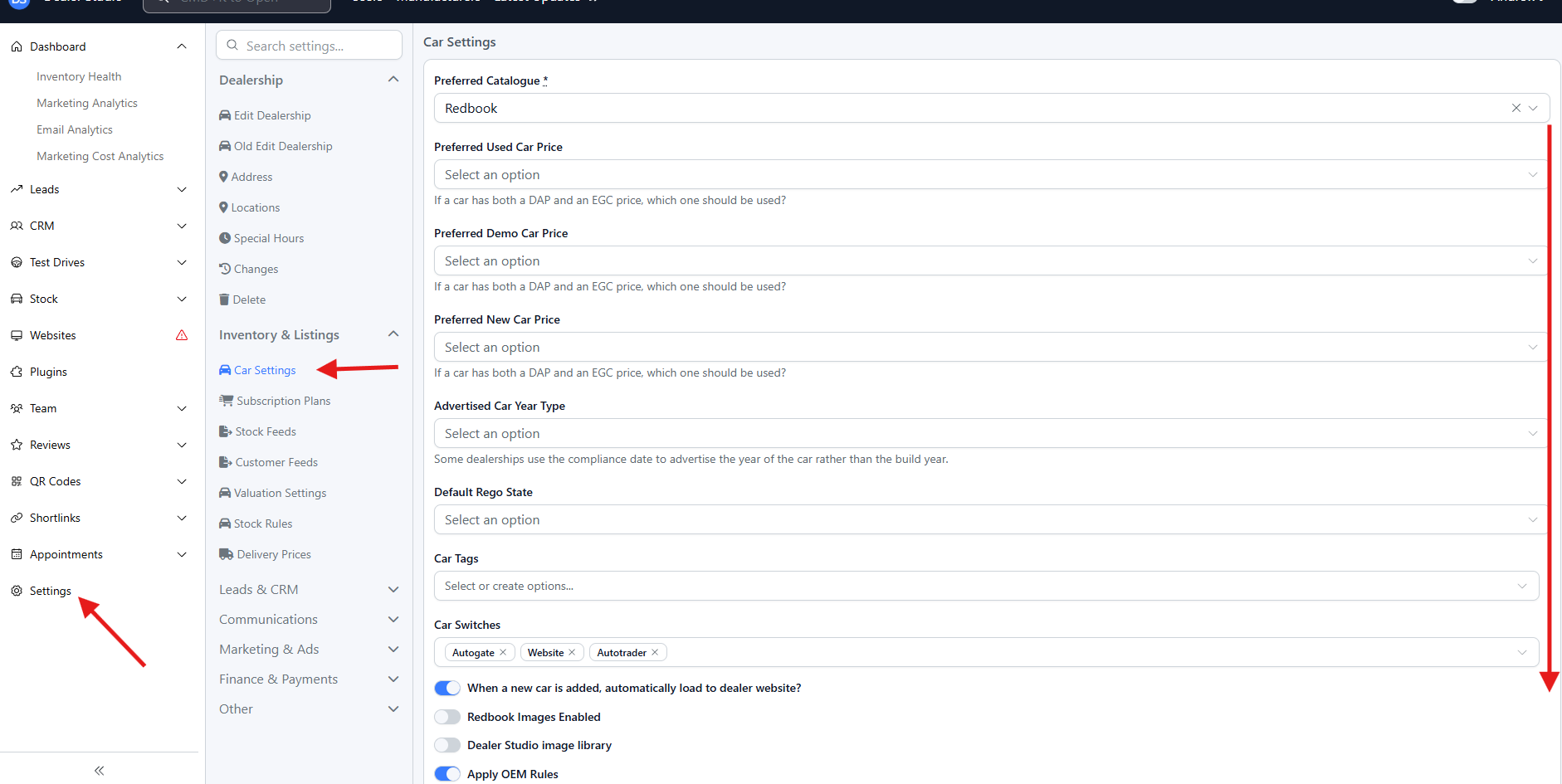
Log in to the Dealer Studio Dashboard.
-
Use the sidebar to navigate to Settings.
-
Select Car Settings.
Step 2: Add Your Value Propositions
-
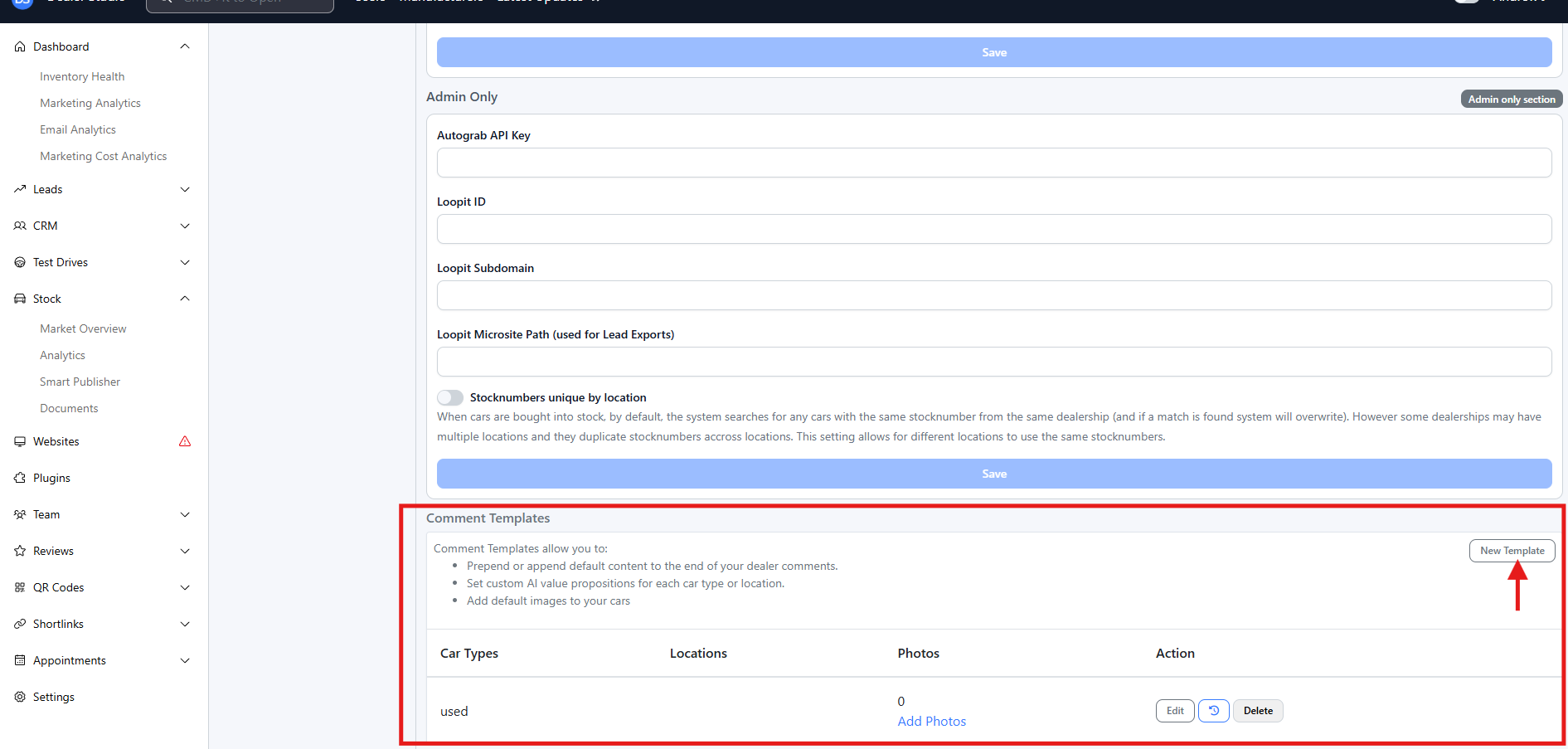
In Car Settings, select "New Template" locate the field:
“Value propositions used to generate AI comments” -
Enter the key points you want the AI to use when generating dealer comments.
Examples of value propositions:
-
Family-owned dealership
-
Competitive finance options available
-
Full service history
-
Extended warranty options
-
Trusted local dealer
👉 These value propositions guide the AI and help ensure comments align with your dealership’s tone and offerings.
Once entered, your changes are saved automatically (or click Save if prompted).
Step 3: Generate AI Comments for a Car Listing
-
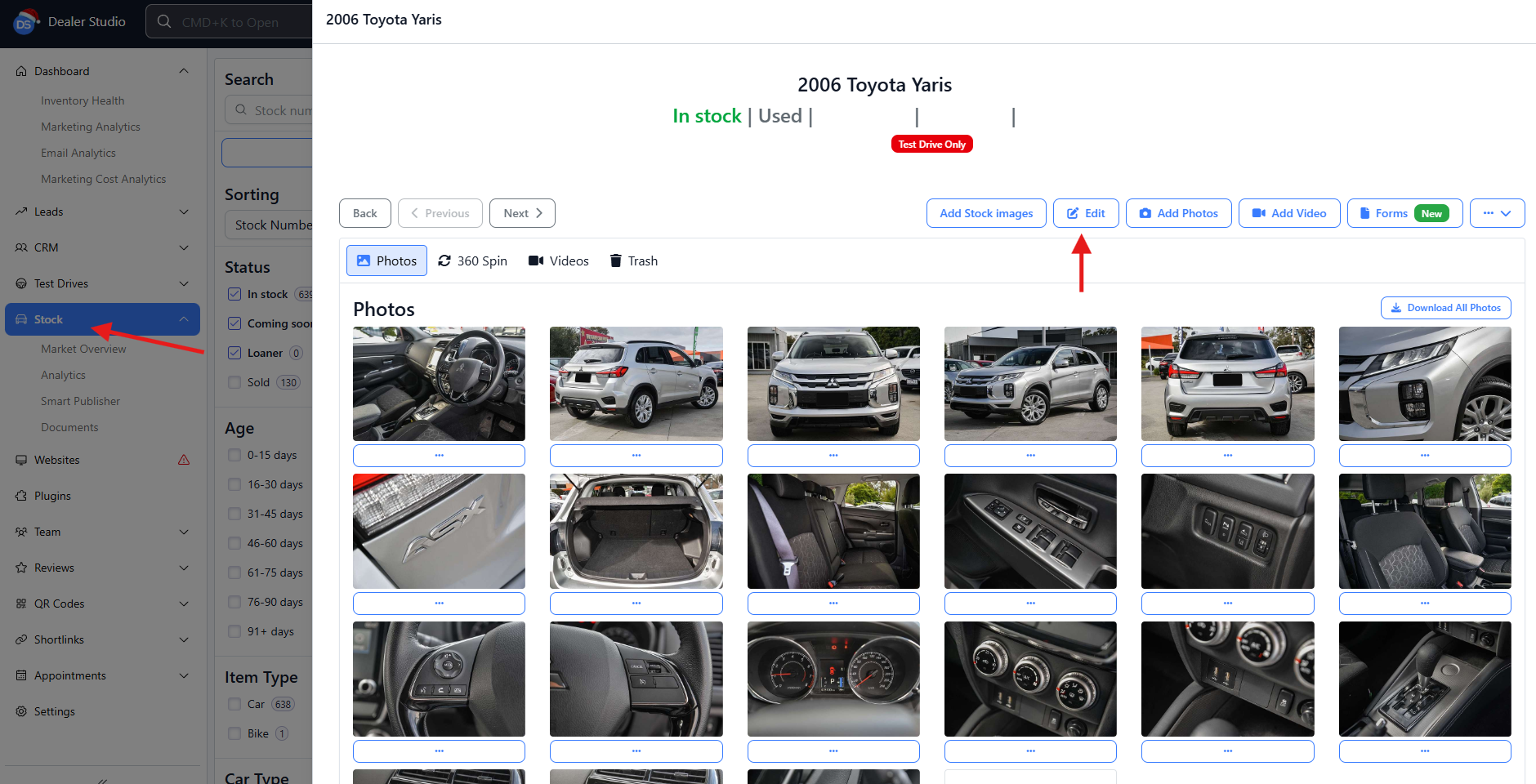
Use the sidebar to navigate to Stock.
-
Select the vehicle listing you want to update.
-
Click Edit on the listing.
Step 4: Generate Dealer Comments
-
Scroll down to the Dealer Comments section.
-
Click Generate AI Comments.
-
Allow a few moments for the AI to generate the content.
The generated comments will automatically appear in the Dealer Comments text box.
Step 5: Review and Adjust (Recommended)
While AI comments are generated automatically, we recommend:
-
Reviewing for accuracy
-
Adjusting tone or wording if needed
-
Adding any vehicle-specific highlights
That’s It!
🎉 You’ve successfully created AI-generated dealer comments using Dealer Studio.
You can repeat this process for any vehicle listing, and update your value propositions at any time to refine future AI-generated comments.