Clearing Browser Cache & Cookies for Dealer Studio Websites
Sometimes your browser stores outdated data for a specific website. This can cause issues such as:
-
“We’re sorry, but something went wrong” errors
-
Stock not loading correctly
-
Images or banners not updating
-
Pages displaying old content
This guide shows you how to clear cache and cookies only for Dealer Studio or your dealership website, without affecting other websites.
Supported browsers:
-
Google Chrome
-
Microsoft Edge
-
Safari (Mac)
Important: What This Will (and Won’t) Do
✔ Clears data only for:
-
dealerstudio.com.au -
Your dealership website domain (e.g.
yourdealership.com.au)
✔ May log you out of Dealer Studio
✖ Will not delete:
-
Saved passwords for other sites
-
Browser history
-
Data from unrelated websites
Try This First (Optional)
Before clearing cookies, try:
-
Hard refresh:
-
Windows:
Ctrl + F5 -
Mac:
Cmd + Shift + R
-
-
Open the site in an incognito/private window
-
Try another browser
If the issue persists, continue below.
Google Chrome: Clear Cache & Cookies (Site-Specific)
Step 1: Open Site Data Settings
-
Open Google Chrome.
-
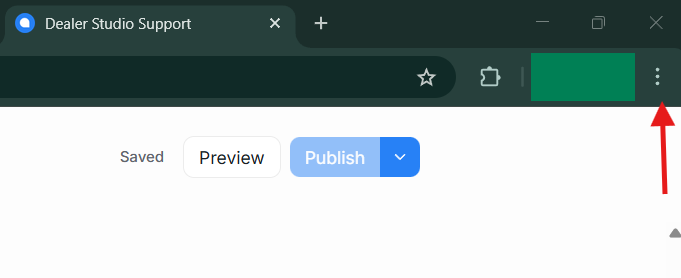
Click the three dots (⋮) → Settings.
-
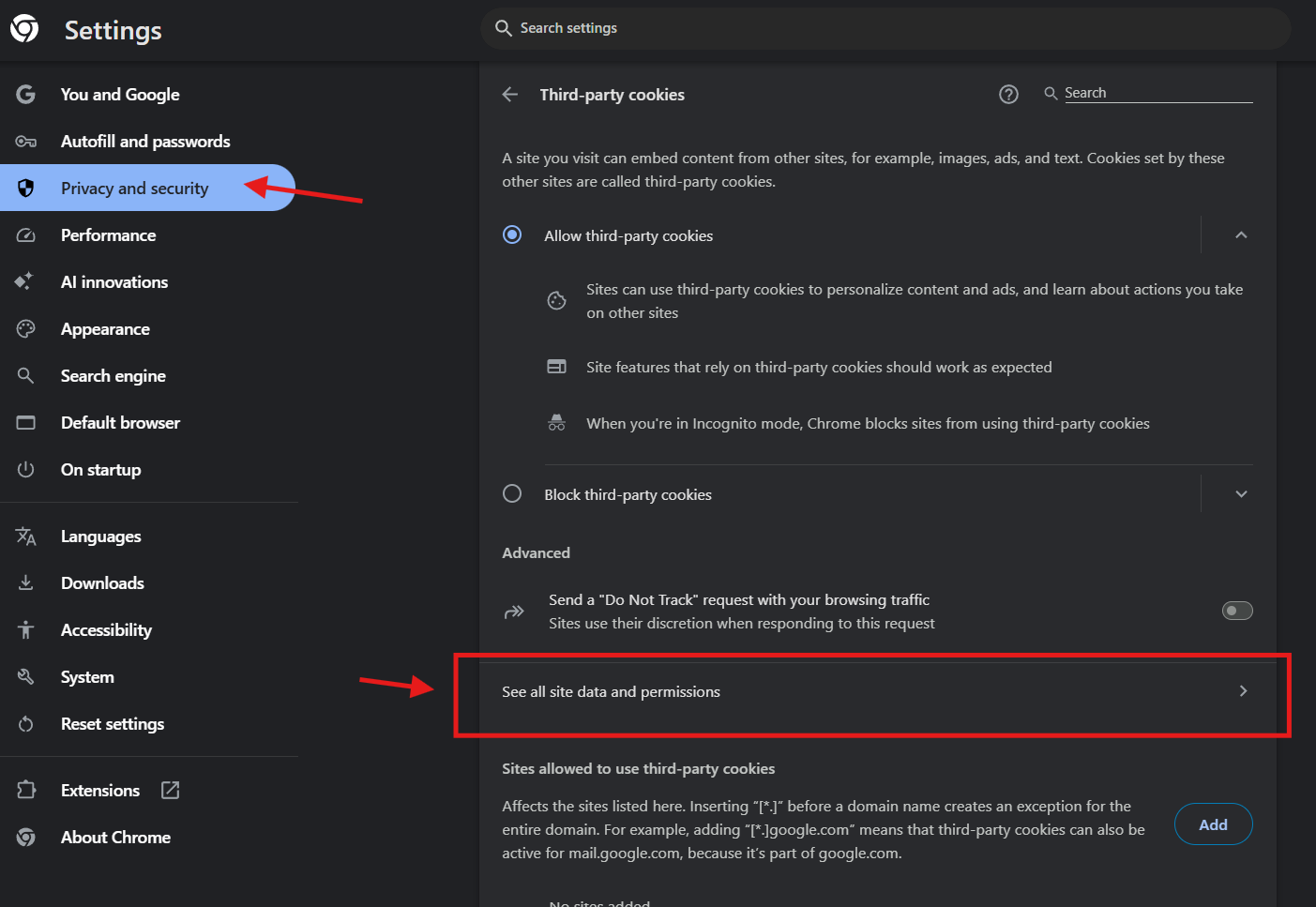
Select Privacy and security.
-
Click Cookies and other site data.
-
Select See all cookies and site data.
Step 2: Remove Dealer Studio Data Only
-
Use the search box to search for:
dealerstudio.com.au
-
Click the trash can icon to remove it.
-
Repeat the steps for:
- Your dealership website domain (e.g.
yourdealership.com.au)
- Your dealership website domain (e.g.
Step 3: Restart Chrome
Close all Chrome windows, reopen the browser, and reload the website.
Microsoft Edge: Clear Cache & Cookies (Site-Specific)
Step 1: Open Site Data Settings
-
Open Microsoft Edge.
-
Click the three dots (⋮) → Settings.
-
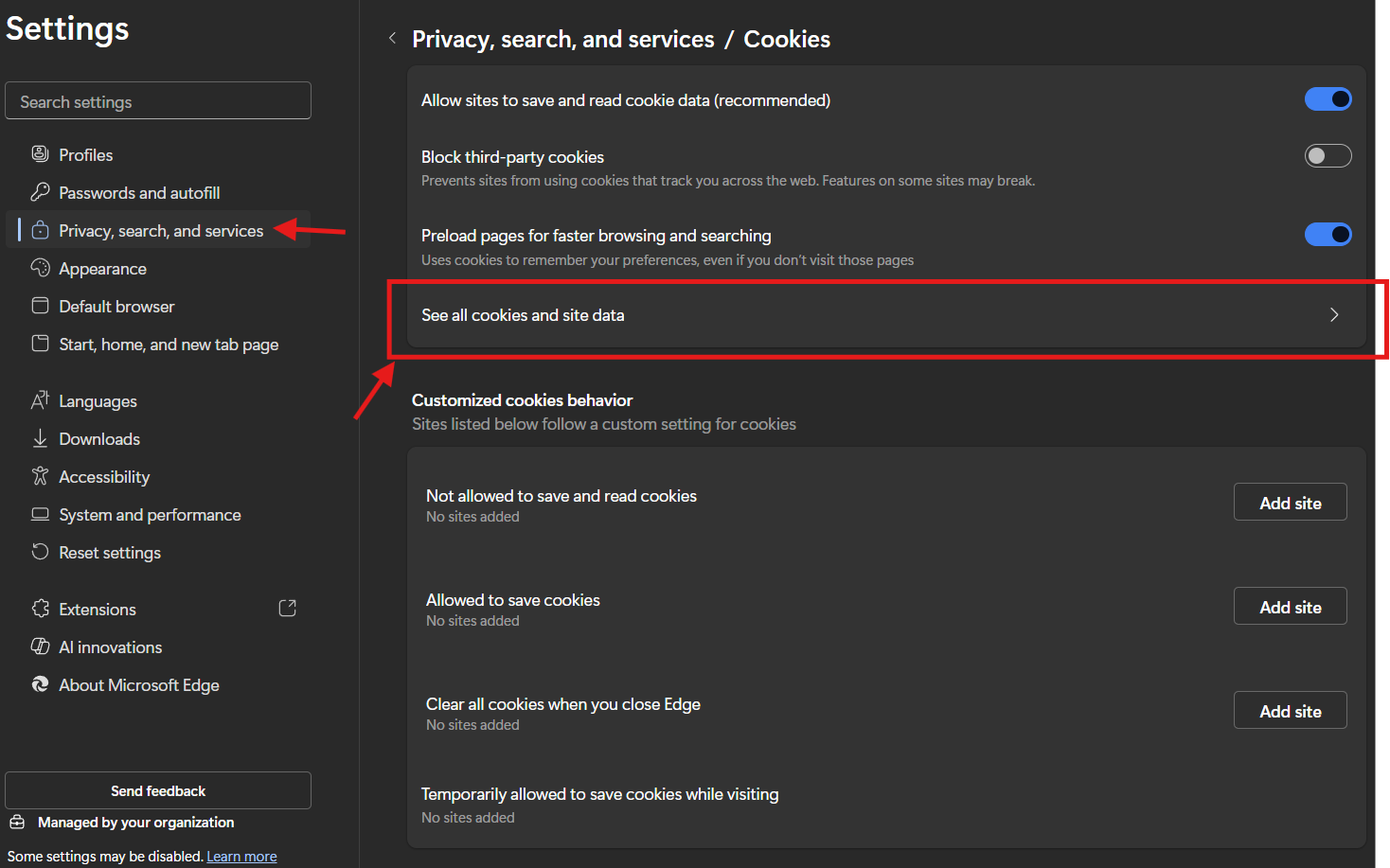
Select Privacy, search, and services.
-
Click Cookies and site permissions.
-
Select Manage and delete cookies and site data.
-
Click See all cookies and site data.
Step 2: Remove Dealer Studio Data Only
-
Search for:
dealerstudio.com.au
-
Expand the result and click the trash can icon.
-
Repeat for:
- Your dealership website domain
Step 3: Restart Edge
Close Edge completely, reopen it, and reload the website.
Safari (Mac): Clear Cache & Cookies (Site-Specific)
Step 1: Enable the Develop Menu (One-Time Setup)
-
Open Safari.
-
Click Safari → Settings.
-
Go to Advanced.
-
Enable Show Develop menu in menu bar.
Step 2: Remove Dealer Studio Cookies Only
-
Go to Safari → Settings → Privacy.
-
Click Manage Website Data.
-
Use the search field to find:
-
dealerstudio.com.au -
Your dealership website domain
-
-
Select only those entries and click Remove.
Step 3: Clear Cached Files for Those Sites
-
Click Develop in the top menu.
-
Select Empty Caches.
- This clears cached files but does not remove cookies for other sites.
Step 4: Restart Safari
Close Safari completely, reopen it, and reload the website.
When Should You Do This?
Clear site-specific data if:
-
A banner or image was updated but still shows the old version
-
Stock changes are not appearing correctly
-
You see errors on Dealer Studio but other sites work normally
-
The website works in a private/incognito window
Still Having Issues?
If the issue continues, please contact Dealer Studio Support with:
-
Your dealership name and website domain
-
What you expected to see vs. what you’re seeing
-
Screenshots (if possible)
-
Browser and device used
Clearing site-specific cache and cookies is a safe first step and resolves most display and loading issues quickly 🚀