Using the Page Editor, you can quickly add tags to a car listing, customise them to match your categories, and manage them efficiently across multiple listings. Tags can highlight features such as fuel type, body style, or special promotions, helping your audience find relevant vehicles faster.
Follow the steps below to learn how to add and manage tags effectively on your car listings.
Finding Settings
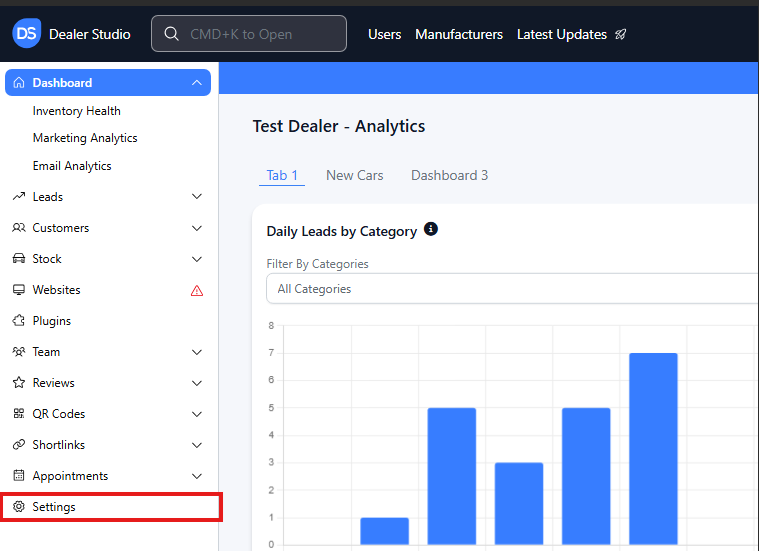
Step 1: On the Dealership Dashboard, Settings on the Bottom Left menu
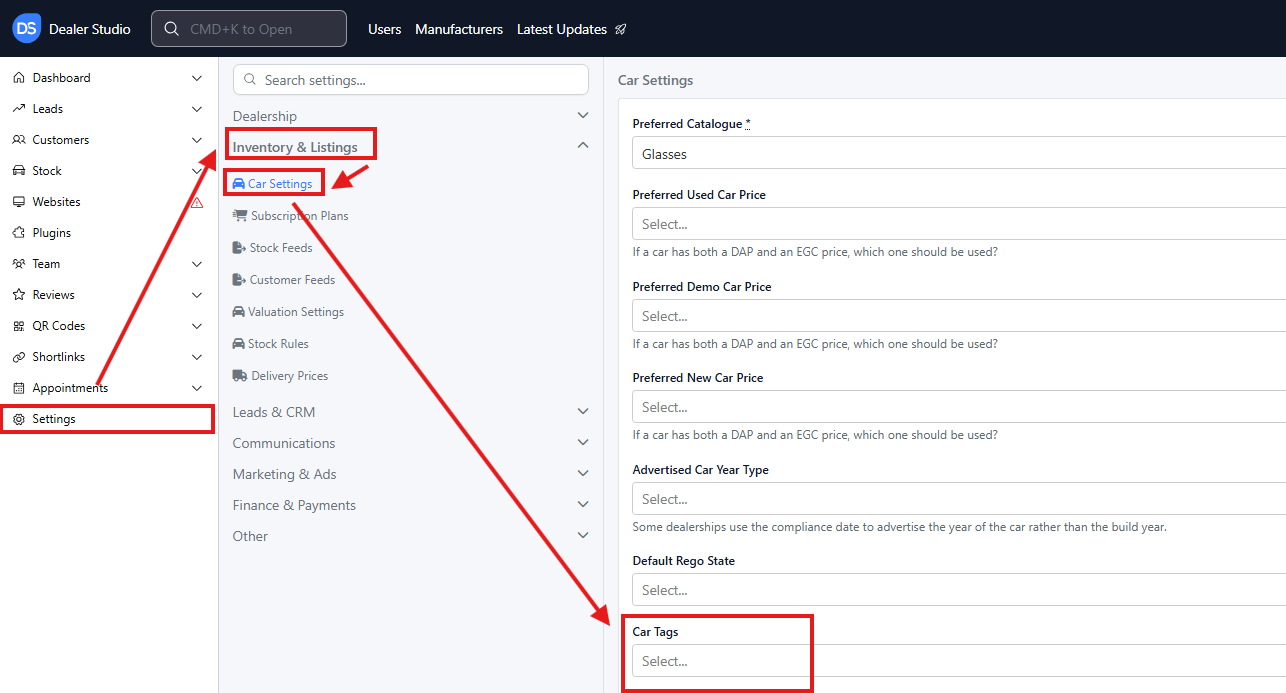
Step 2: Select Inventory and Listings then Car Settings
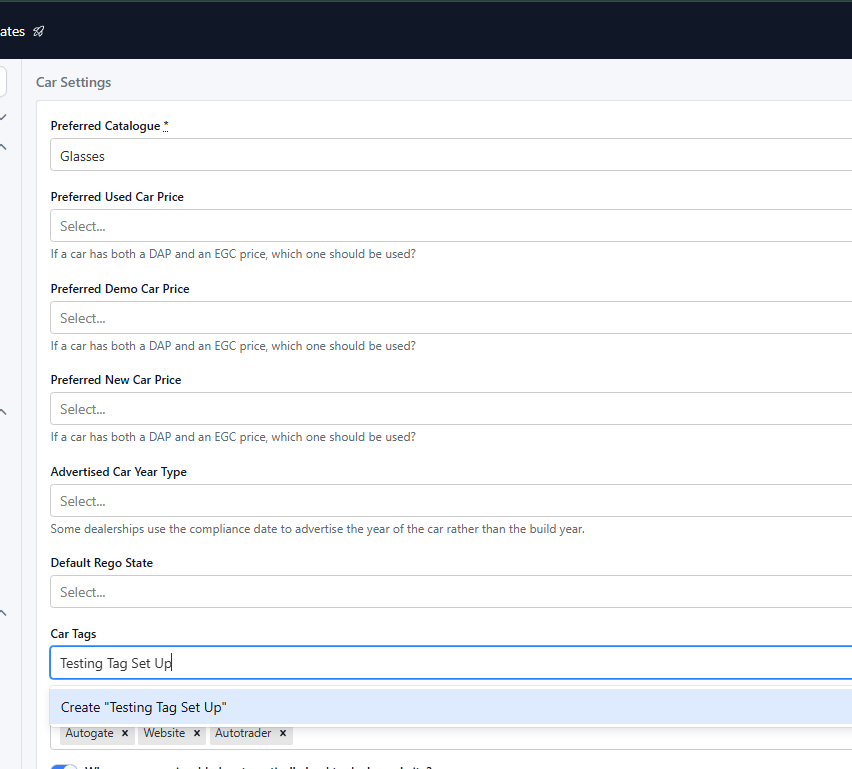
Step 3: Add in the Tag you want created
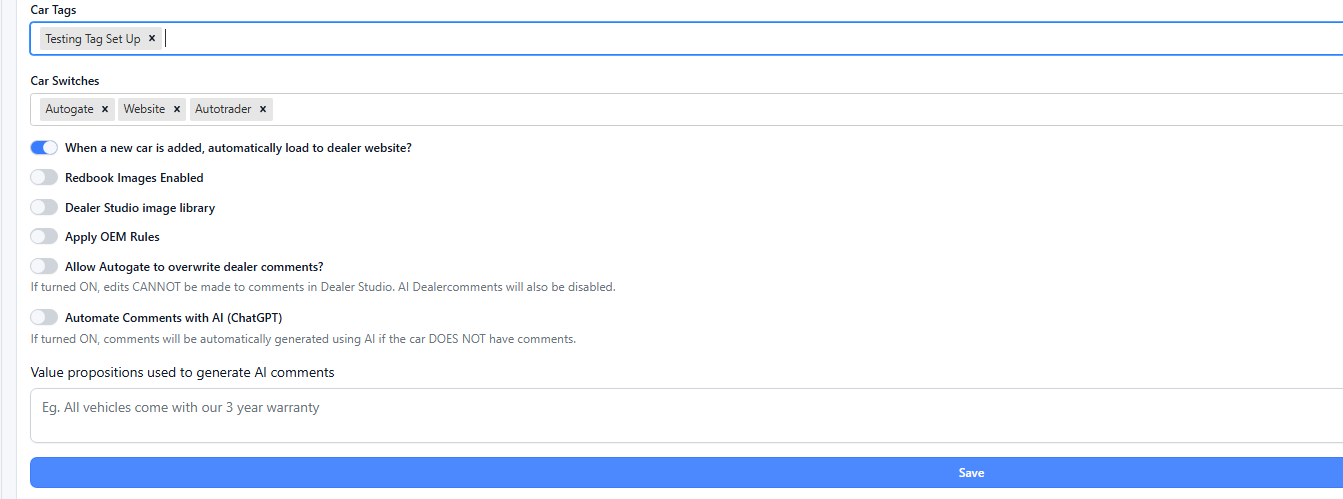
Step 4: Click Save
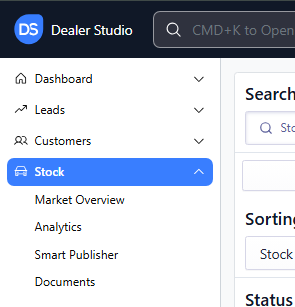
Step 5: Then Please navigate to 'Stock'
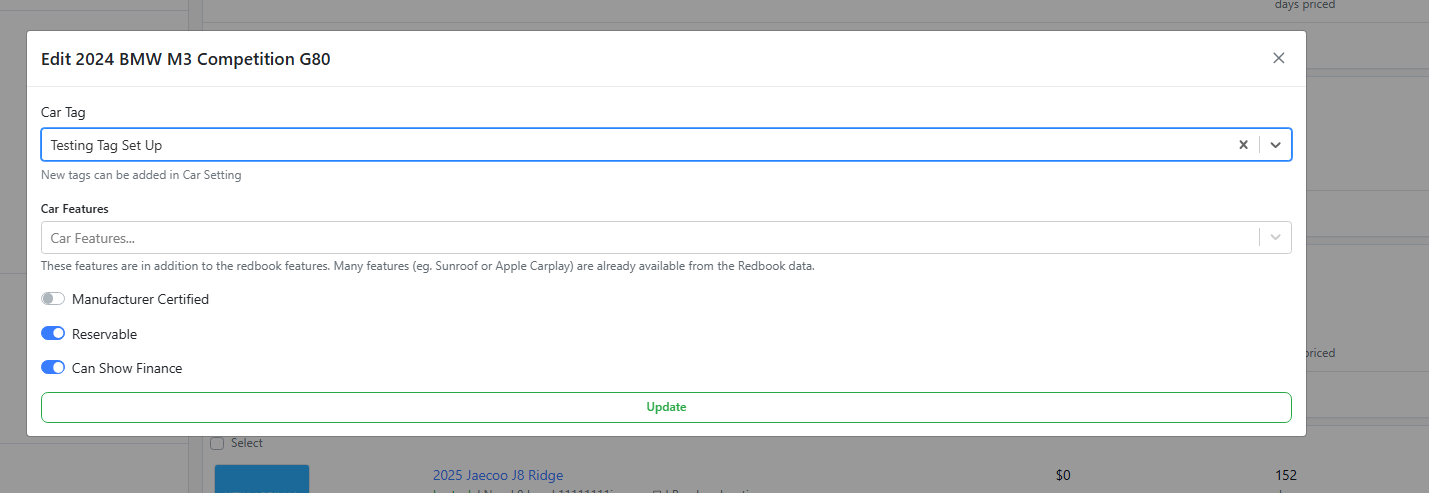
Step 6: As searched or selected, please click Settings on each Stock Item
 Step 7: Add in the tag we just created
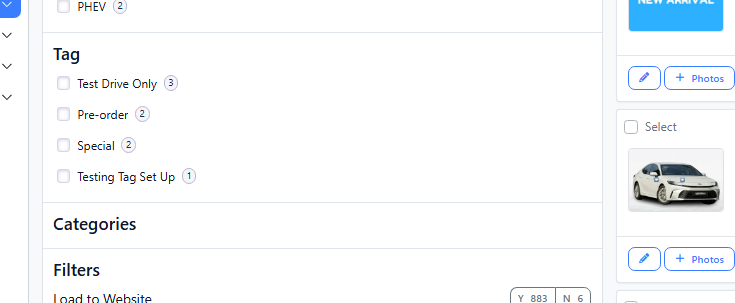
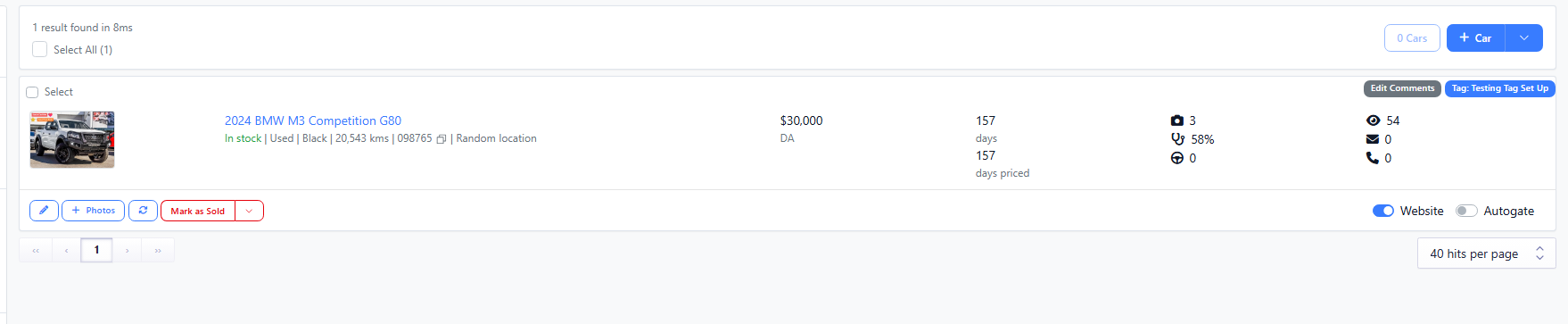
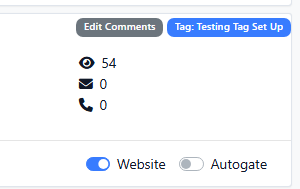
Step 8: You can then see the tag and can also search in 'Stock'
Please see video to clarify:
https://res.cloudinary.com/total-dealer/video/upload/v1763351201/Tagging_Vehicles_unxaqn.mkv