Using the Page Editor, you can quickly insert an Image Slider, add images, and customise settings such as transition effects, speed, and navigation controls. You can also adjust the size and layout to ensure the slider fits seamlessly within your page design and provides an optimal viewing experience across all devices.
Follow the steps below to learn how to add and customise an Image Slider effectively on your pages.
Finding the Page Editor
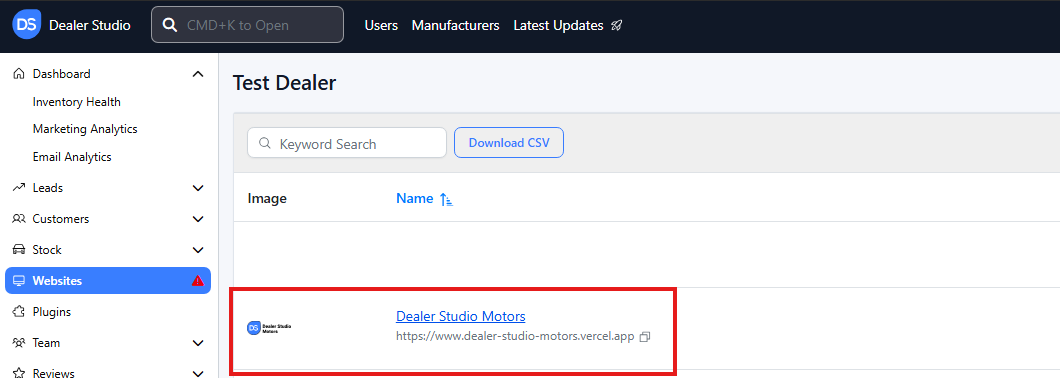
Step 1: On the Dealership Dashboard, select Websites
![]() Step 2: Then Select the desired website to edit
Step 2: Then Select the desired website to edit
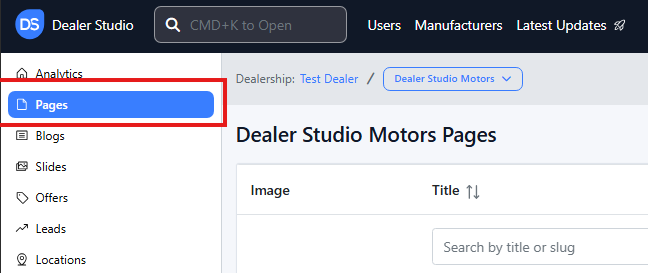
Step 3: Once on the Website Dashboard, select Pages
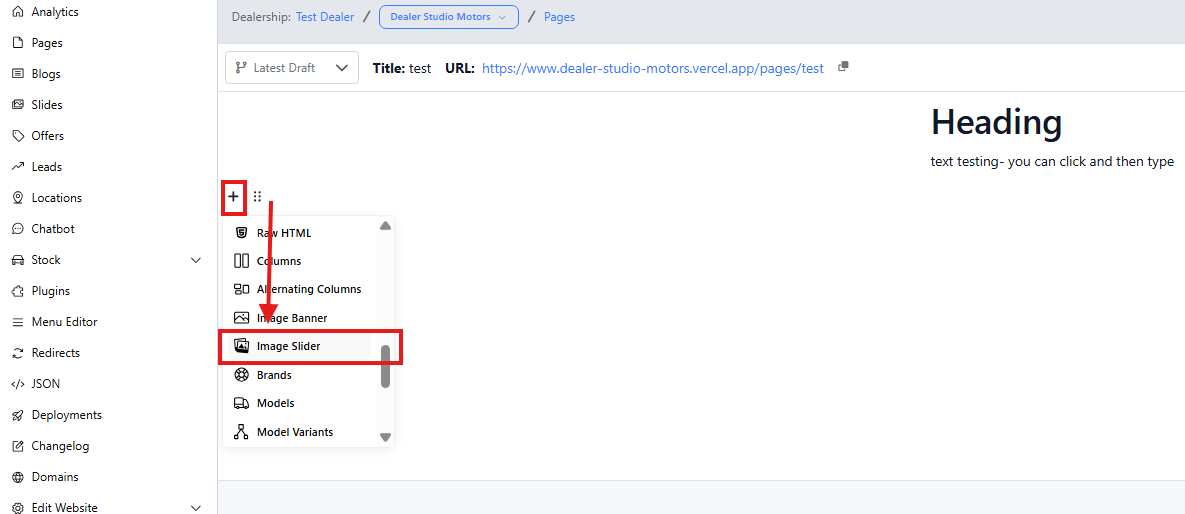
Step 4: Select the page you want to edit

Adding and Editing Existing Image Sliders on Your Pages
-
Navigate to the desired area of the page. Hover your mouse over the left-hand side until the + icon appears. Click on the icon, then scroll down and select the Image Slider button.
-
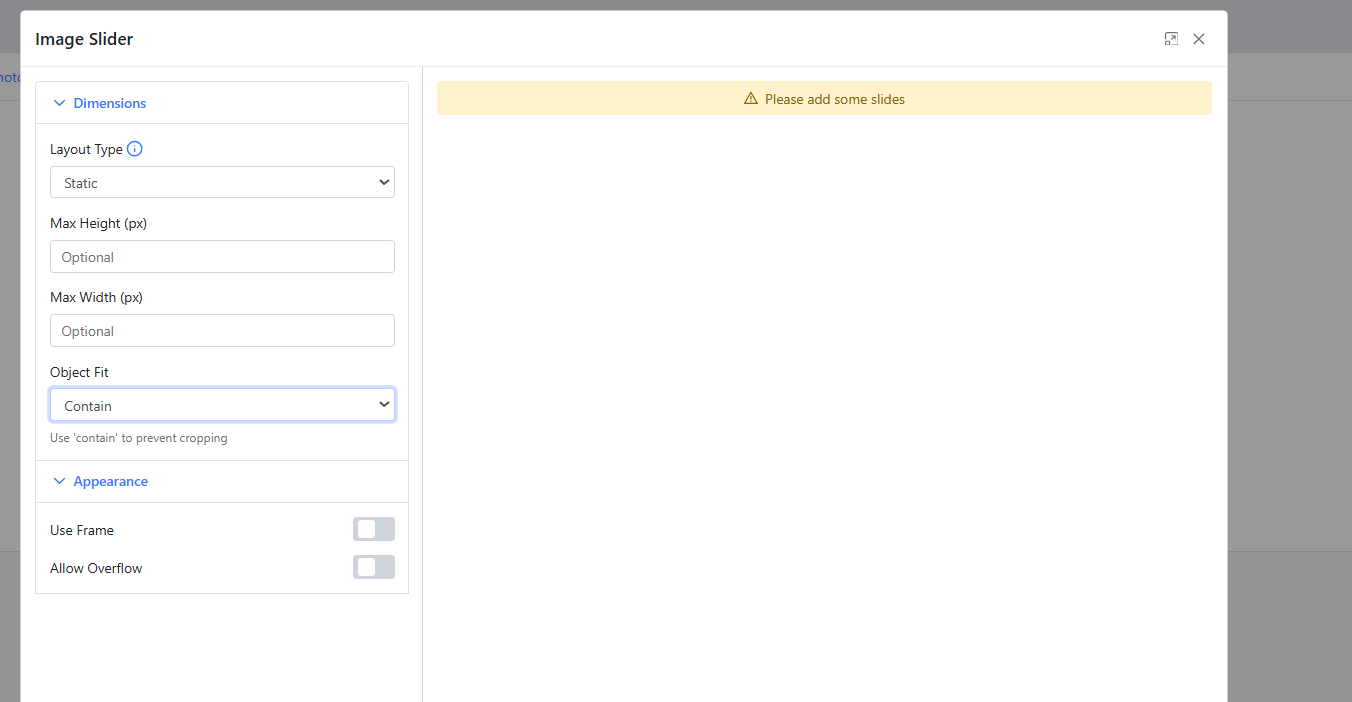
You will be instructed to start from empty;

Until images are added, it will be empty- you also have editing options to make it display how you want it
-
When you add in ' + Add New Slide'
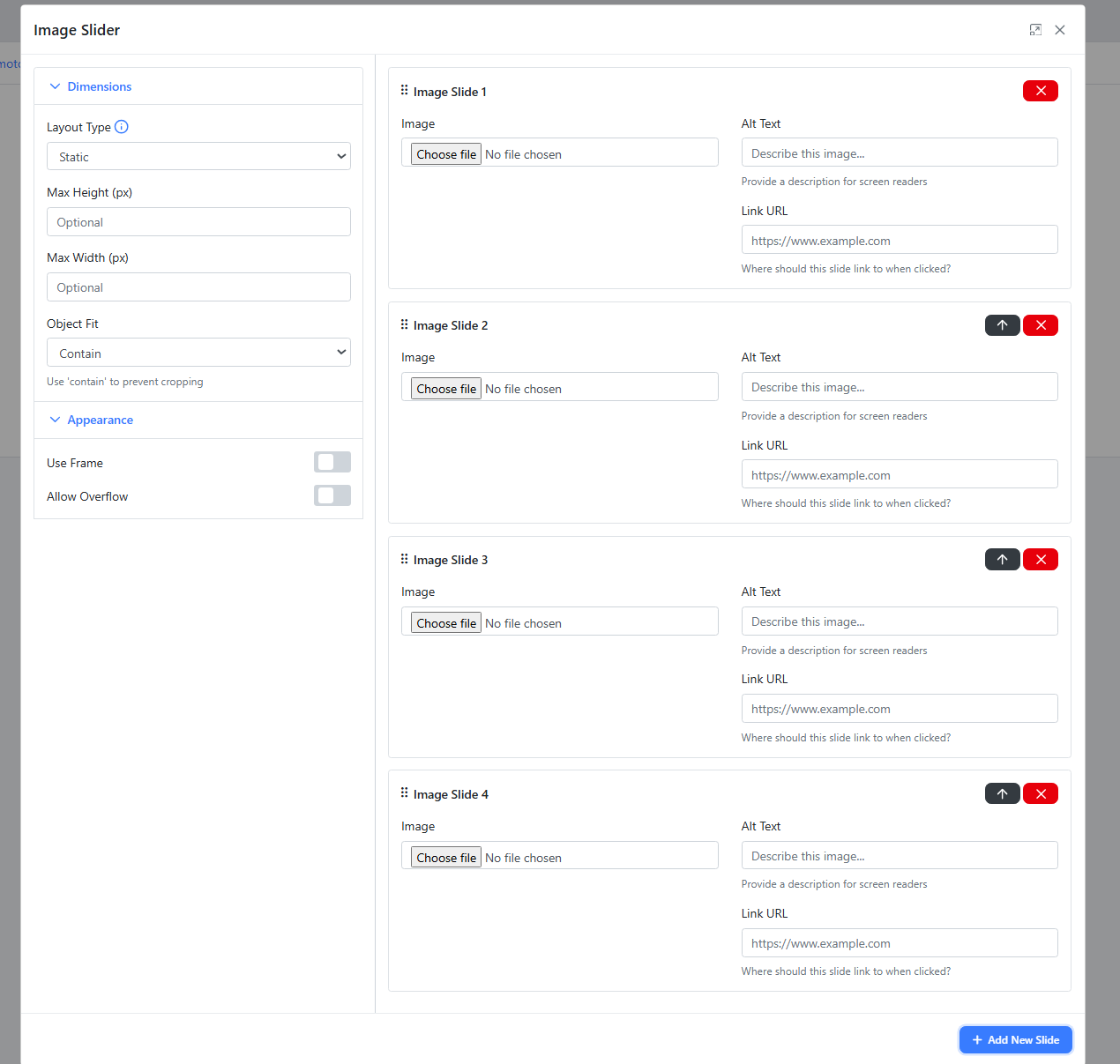
-
You can then choose to thave the images link elsewhere, or to have descriptions
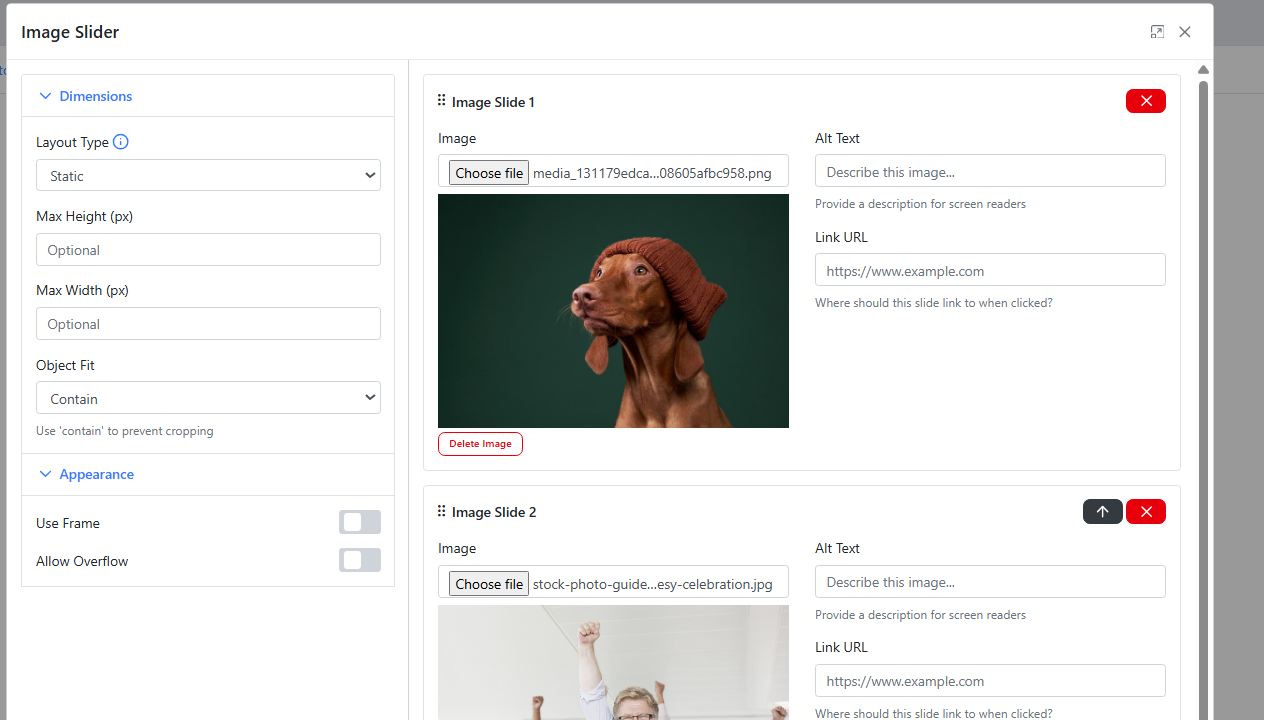
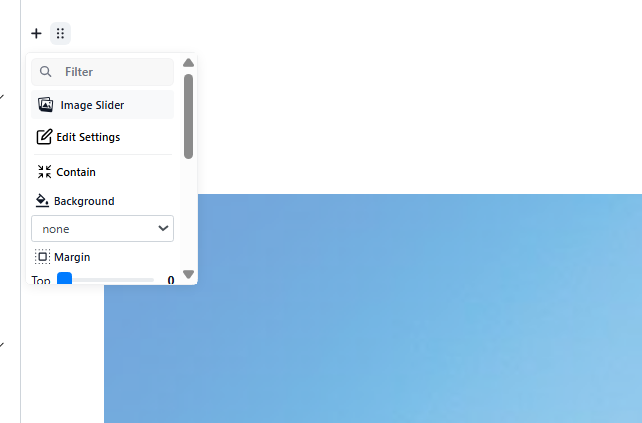
Please see video for Clarity:
https://res.cloudinary.com/total-dealer/video/upload/v1763350136/Image_Slider_vykry1.mkv