Using the Page Editor, you can easily create FAQ sections, organise questions and answers, and customise the layout to match your site’s design. You can also expand or collapse answers for a cleaner, more interactive experience, ensuring your content is both informative and easy to navigate.
Follow the steps below to learn how to add and customise FAQs effectively on your pages.
Finding the Page Editor
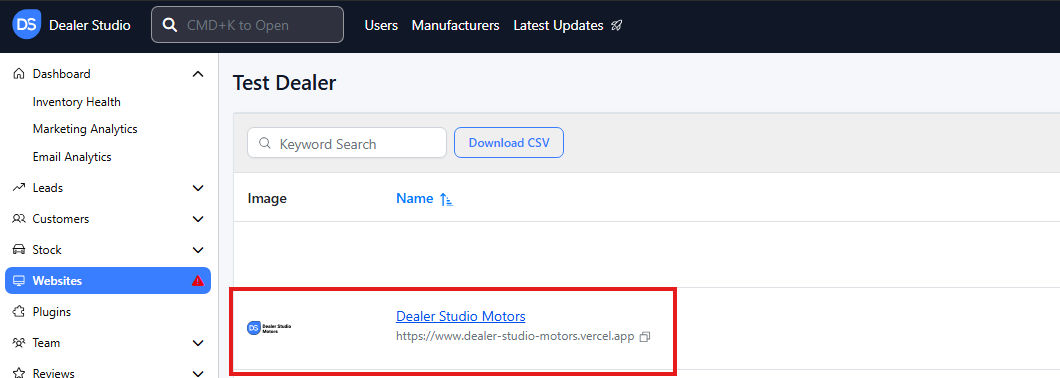
Step 1: On the Dealership Dashboard, select Websites
![]() Step 2: Select the desired website to edit
Step 2: Select the desired website to edit
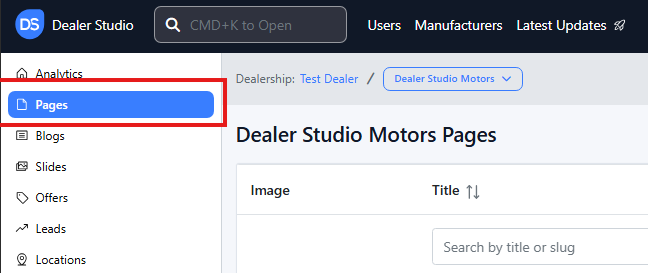
Step 3: Once on the Website Dashboard, select Pages
Step 4: Select the page you want to edit

Adding and Editing Existing FAQ's on Your Pages
-
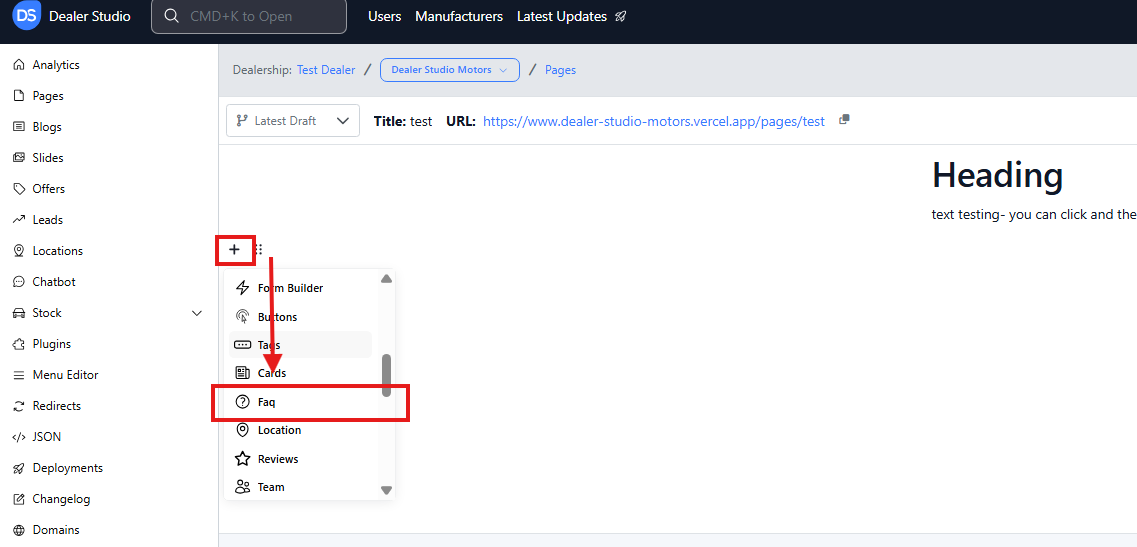
Navigate to the desired area of the page. Hover your mouse over the left-hand side until the + icon appears. Click on the icon, then scroll down and select the FAQ button.
-
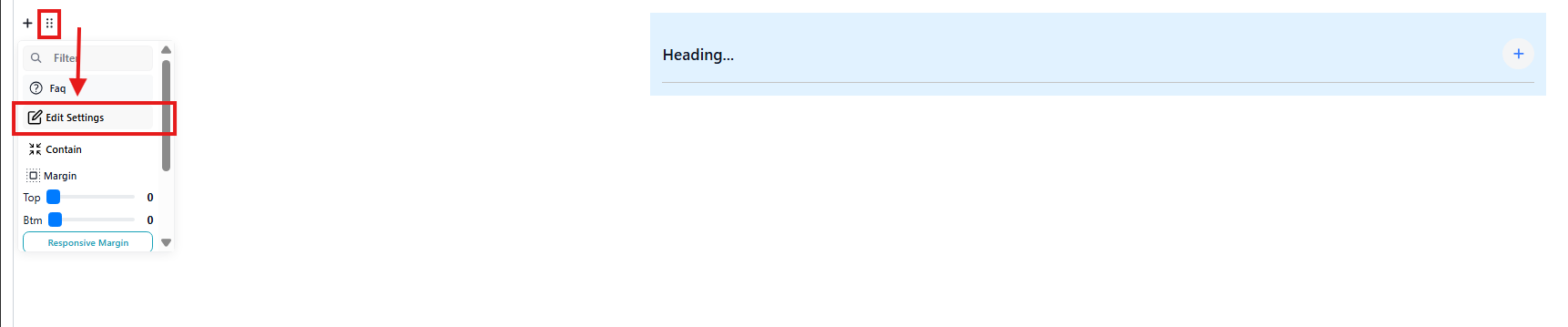
It will then appear blank;

-
Please then click 'Edit Settings'
-
You then need to fill out the 'Q1'
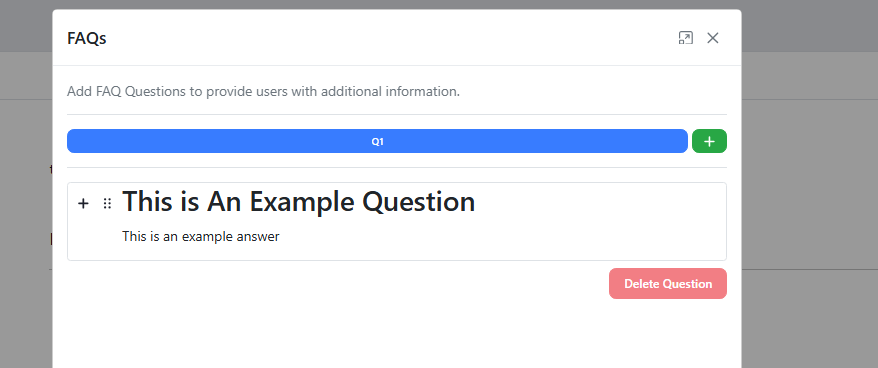
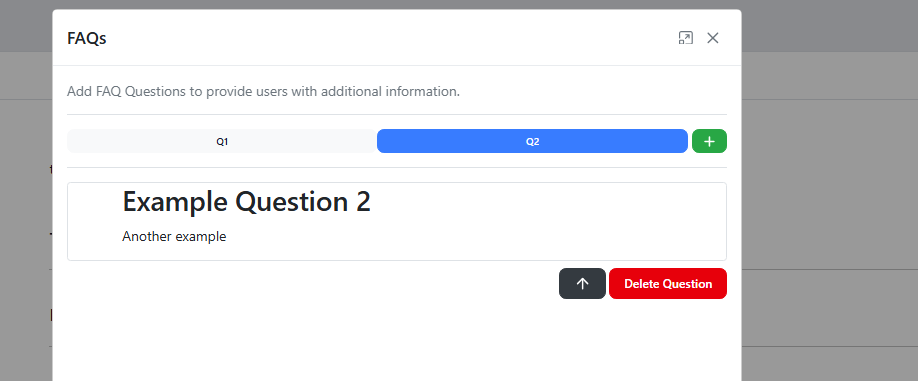
You will need to add in extra questions using the Green ' + ' on the right
-
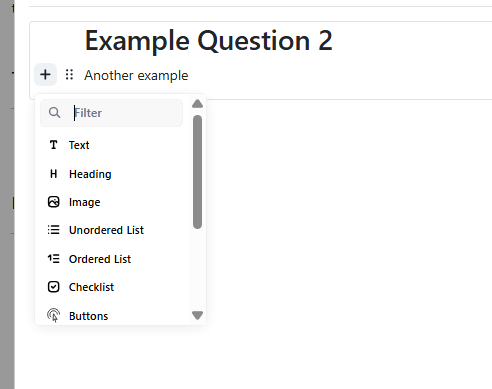
You can also add in buttons, links, lists and tables to each FAQ if this aligns with expectations:
-
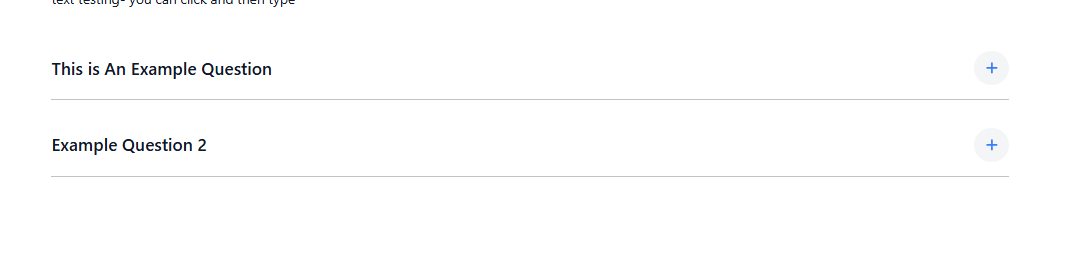
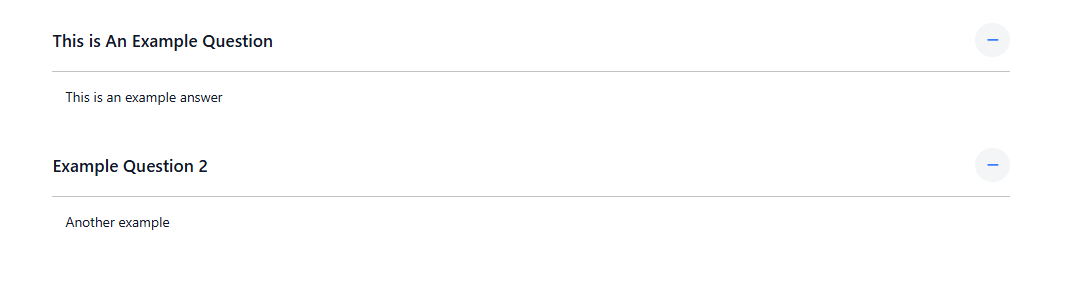
Review and see if content with visuals;
 **Please see video for clarity: **
https://res.cloudinary.com/total-dealer/video/upload/v1763349477/FAQ_s_u4m7ck.mkv