Using the Page Editor, you can easily embed videos from popular platforms, customise their display settings, and adjust placement to fit your page layout. You can control autoplay, looping, and sizing to ensure your videos look professional and enhance your overall page design.
Follow the steps below to learn how to add and customise videos effectively on your pages.
Finding the Page Editor
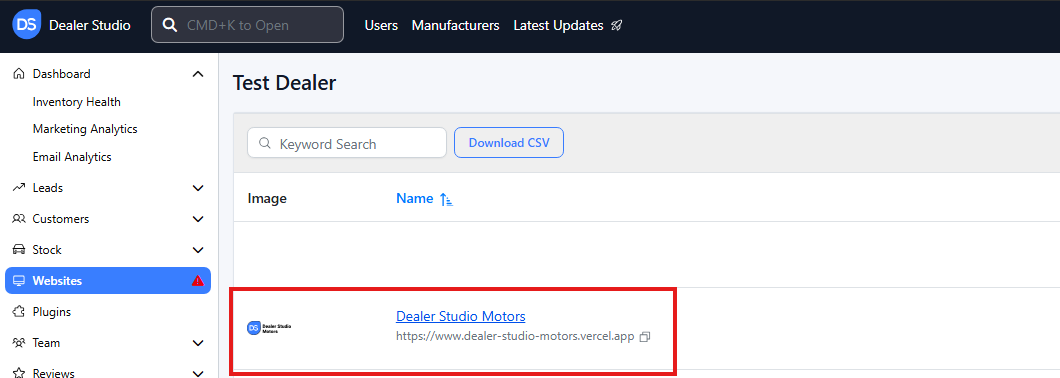
Step 1: On the Dealership Dashboard, select Websites
![]() Step 2: Select the desired website to edit
Step 2: Select the desired website to edit
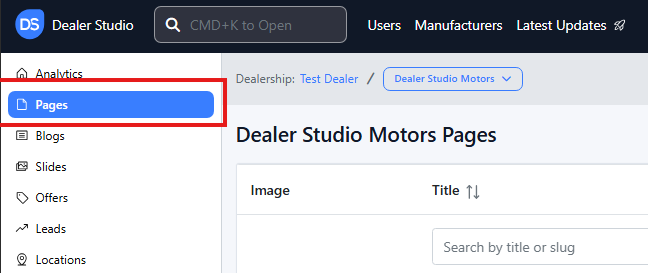
Step 3: Once on the Website Dashboard, select Pages
Step 4: Select the page you want to edit

Adding and Editing Existing Video on Your Pages
-
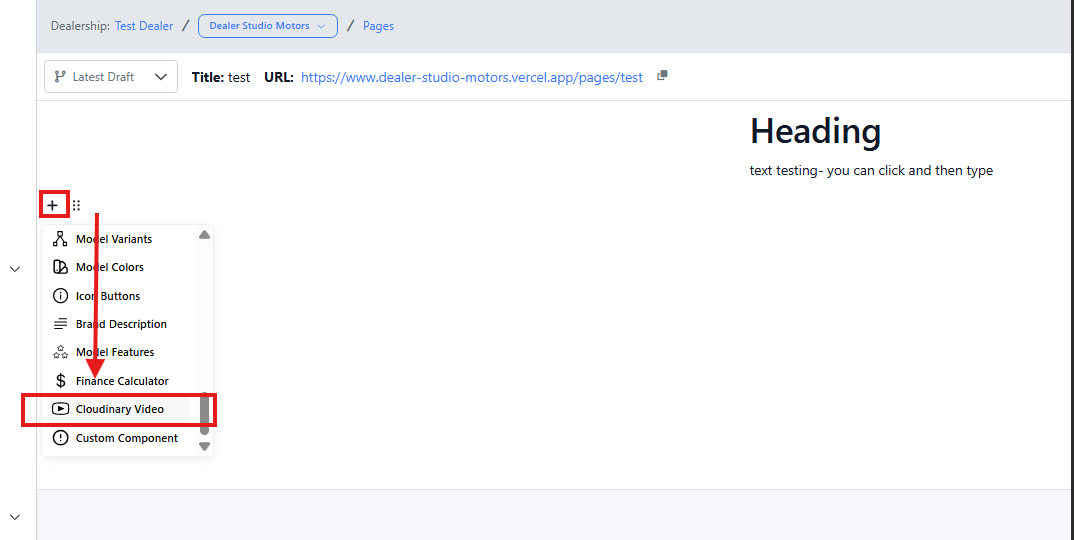
Navigate to the desired area of the page. Hover your mouse over the left-hand side until the + icon appears. Click on the icon, then scroll down and select the Cloudinary Video button.
-
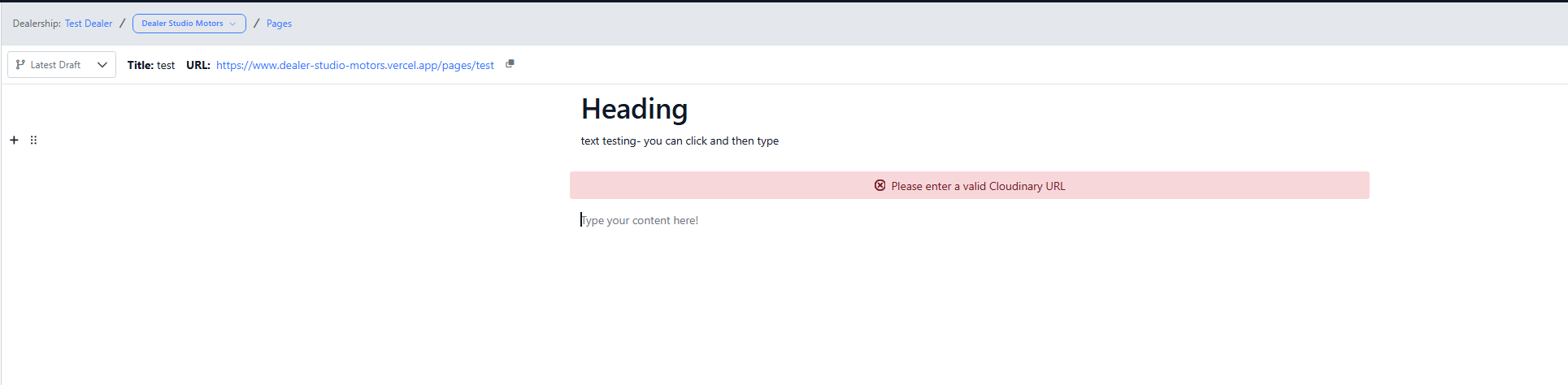
You will then be prompted to enter a URL, Cloudinary video links can be provided by support desk if you need
-
Another way of getting videos into the system is through Youtube, Vimeo or other video paltforms
Simply navigate to where you want the video and paste the link
e.g.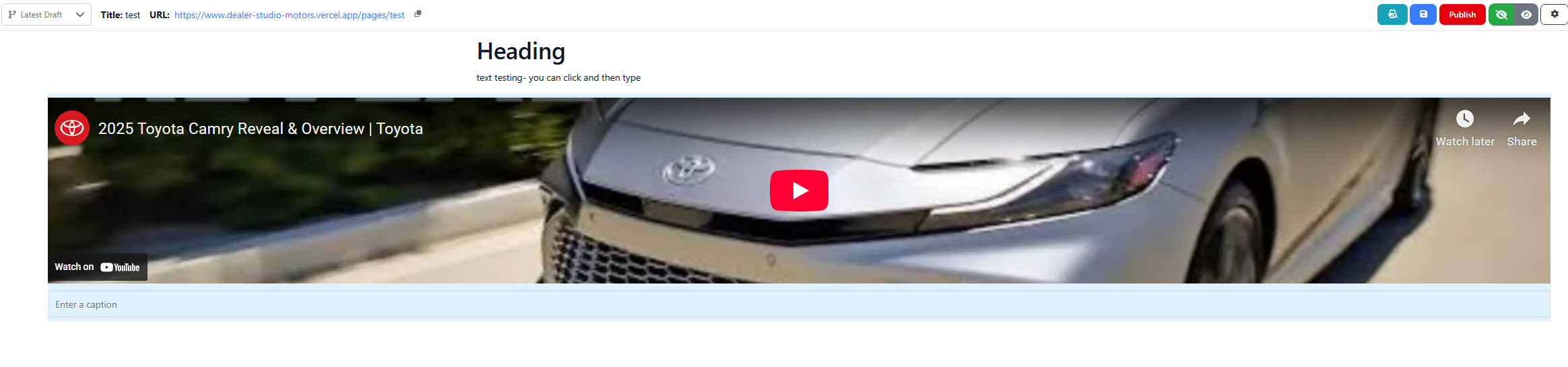
You can also paste within columns:
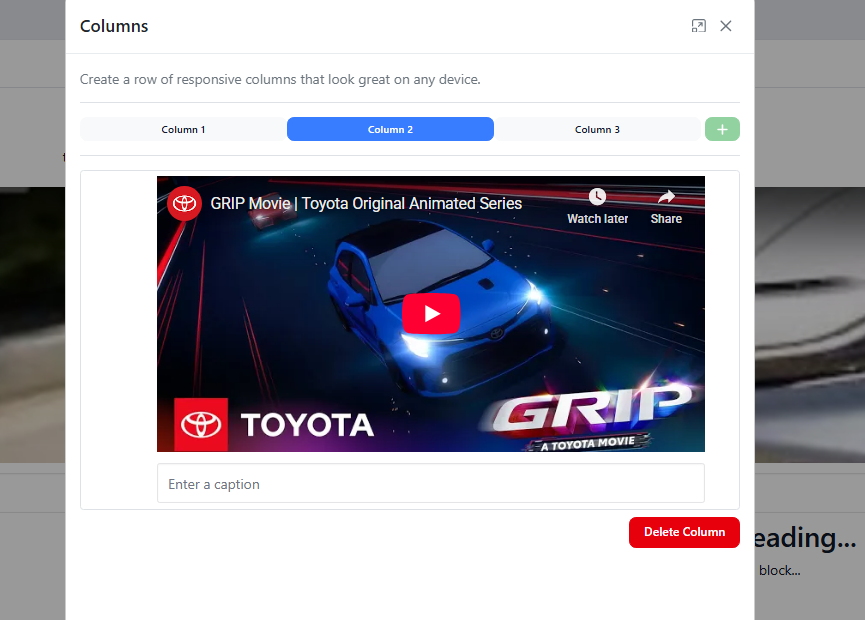
**Please see attached video for Clarity: **
https://res.cloudinary.com/total-dealer/video/upload/v1763348231/Video_Addition_tuytvw.mkv