Using the Page Editor, you can easily insert a Model into any page, choose from available Model Variants, and customise each variant to fit your content and branding. This approach ensures that updates made to a Model are reflected across all pages where it’s used, saving time and reducing the risk of inconsistencies.
Follow the steps below to learn how to add, customise, and manage Models and Model Variants effectively on your pages.
Finding the Page Editor
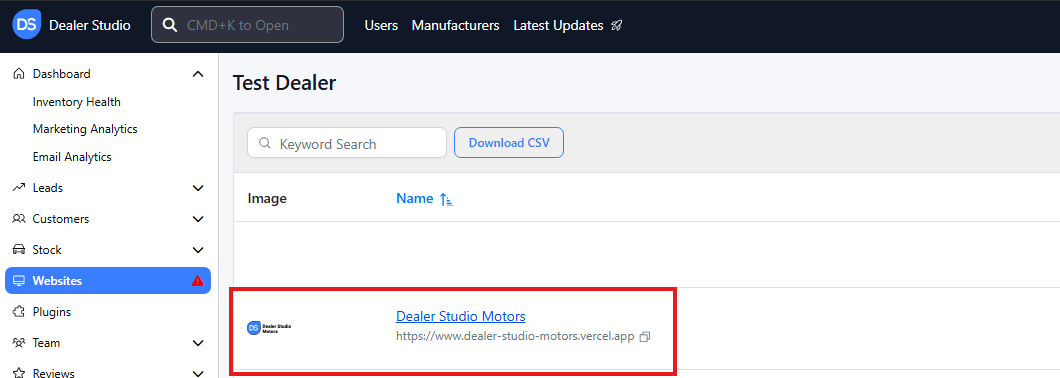
Step 1: On the Dealership Dashboard, select Websites
![]() Step 2: Select the desired website to edit
Step 2: Select the desired website to edit
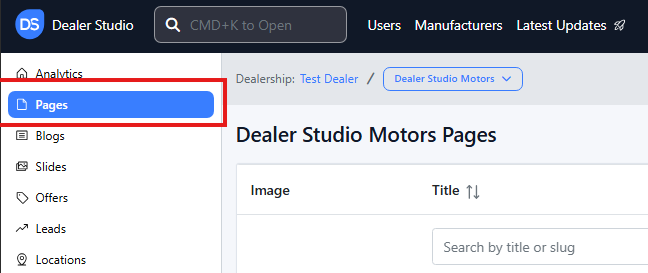
Step 3: Once on the Website Dashboard, select Pages
Step 4: Select the page you want to edit

Adding and Editing Existing Models on Your Pages
-
Navigate to the desired area of the page. Hover your mouse over the left-hand side until the + icon appears. Click on the icon, then scroll down and select the Models button.
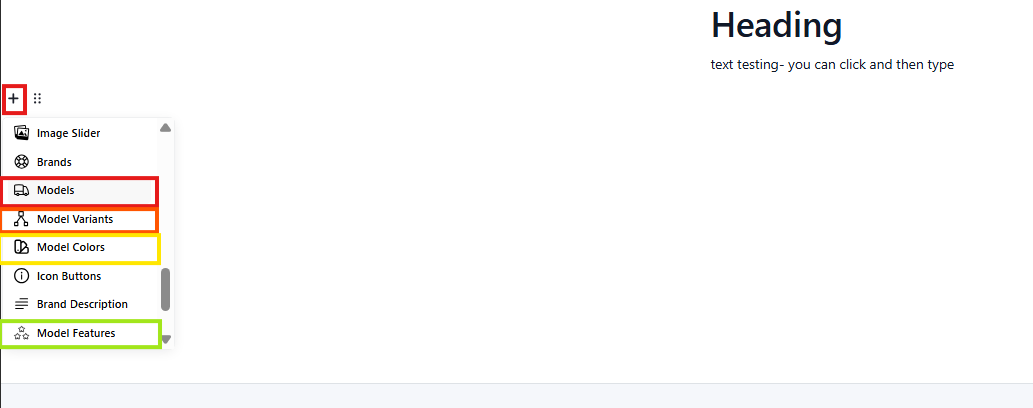
Models - Component that has all vehicles under a manufacturerModel Variants - Select Model and Manufacturer
Model Colours - Select Model and Manufacturer
Model Features - Not prebuilt, is not automatically populated. -
If selecting 'Models'
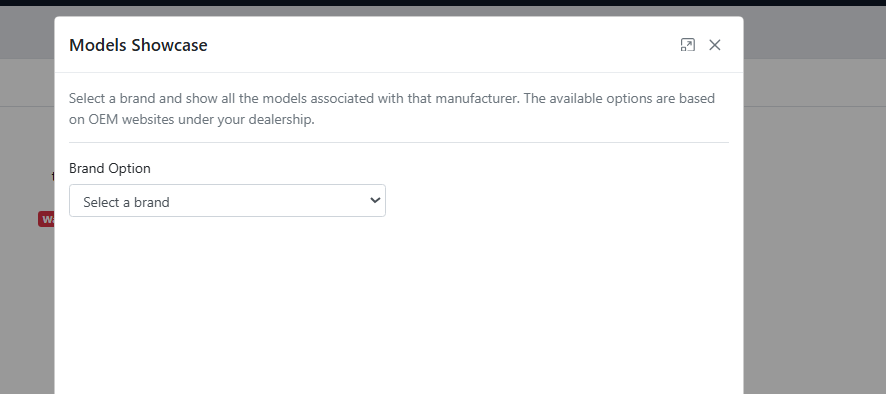
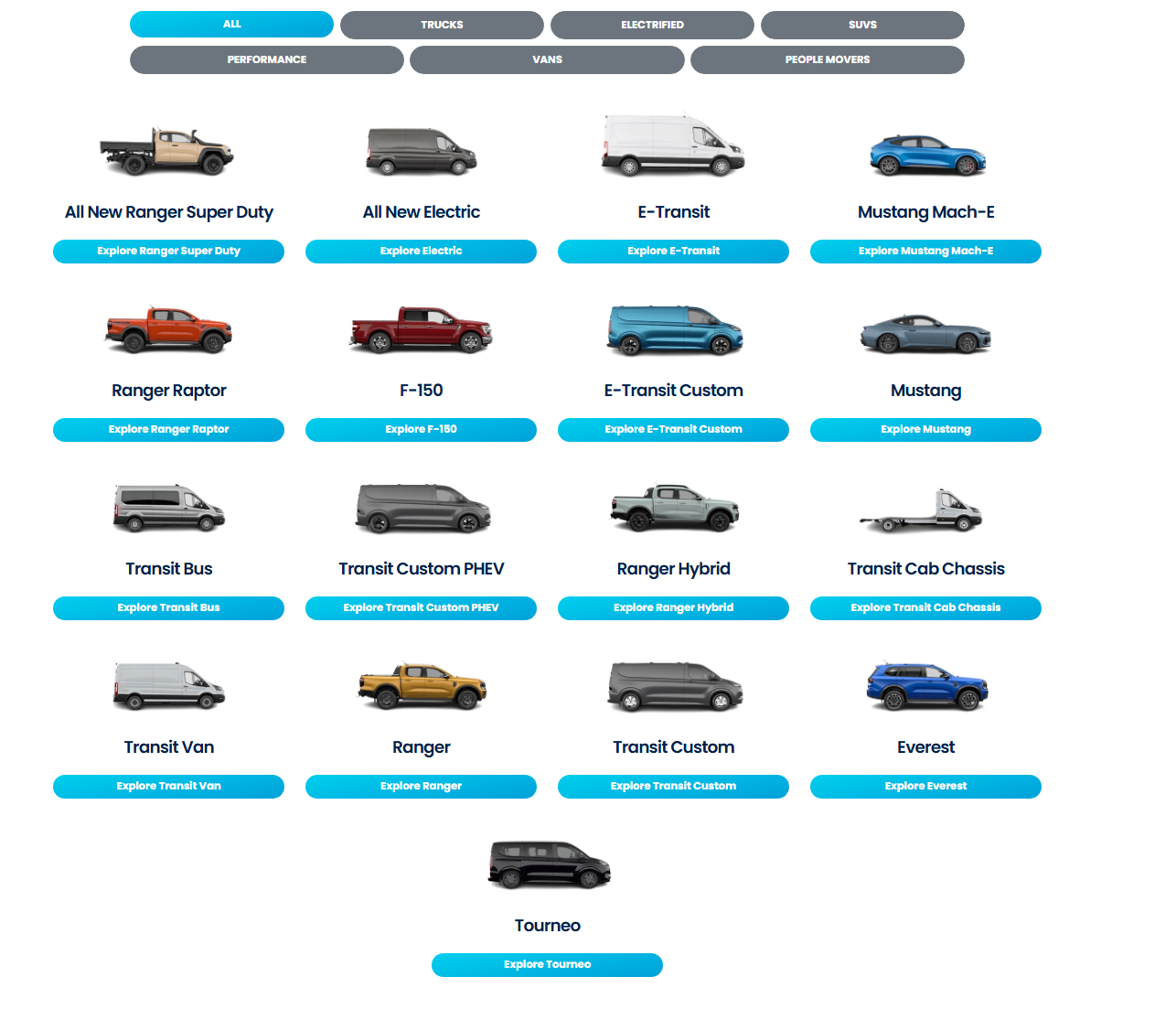
For an example, once you select your Manufacturer, it will display this;

It will look like the below when live;
-
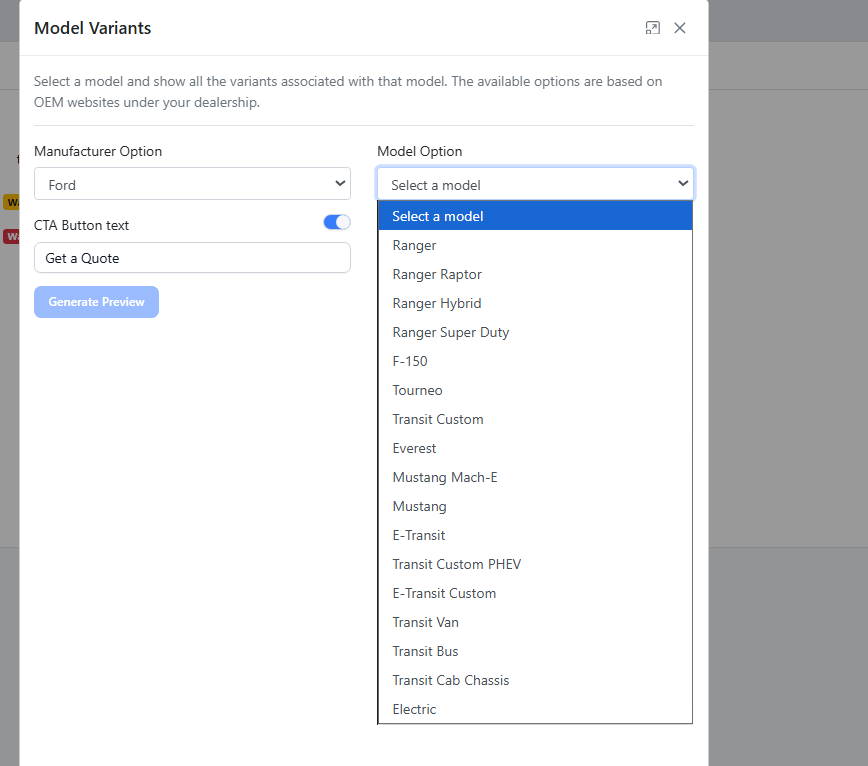
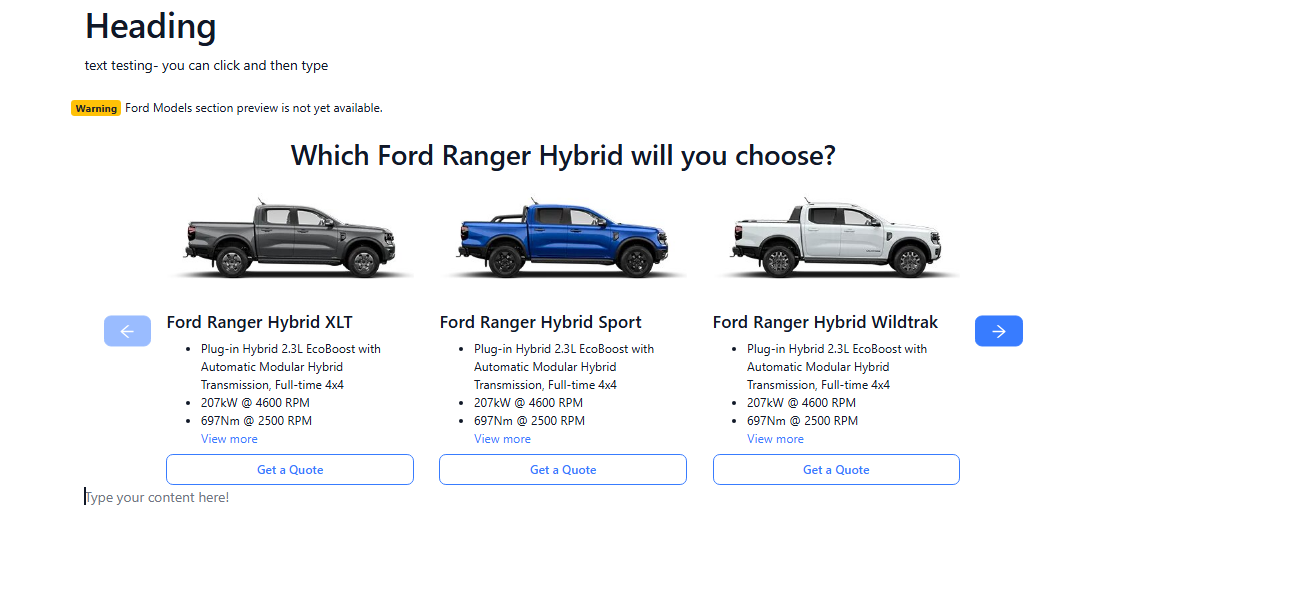
If Selecting Model Variants
Select Manufacturer and Type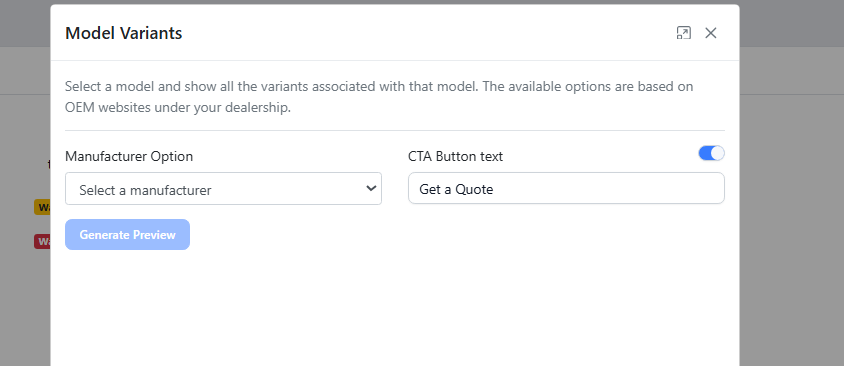
 4. If selecting Model Colours: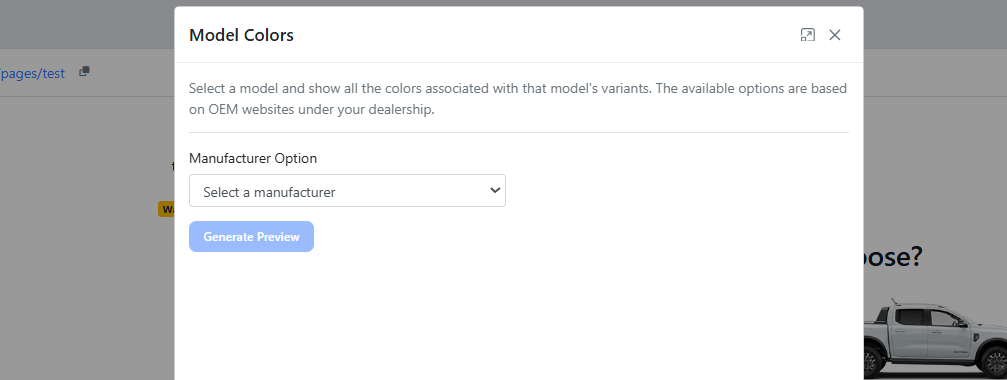
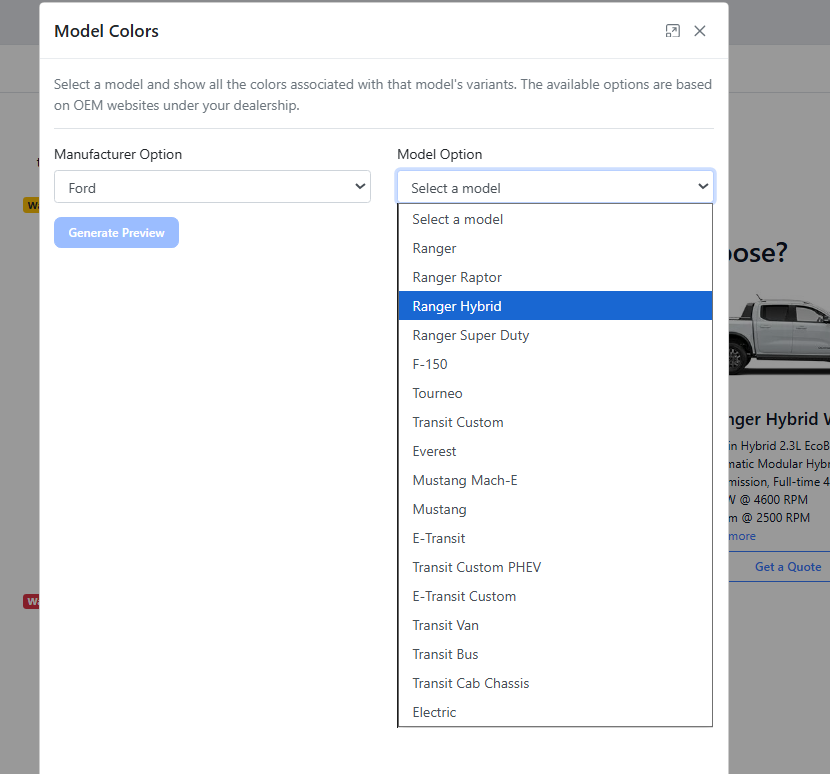
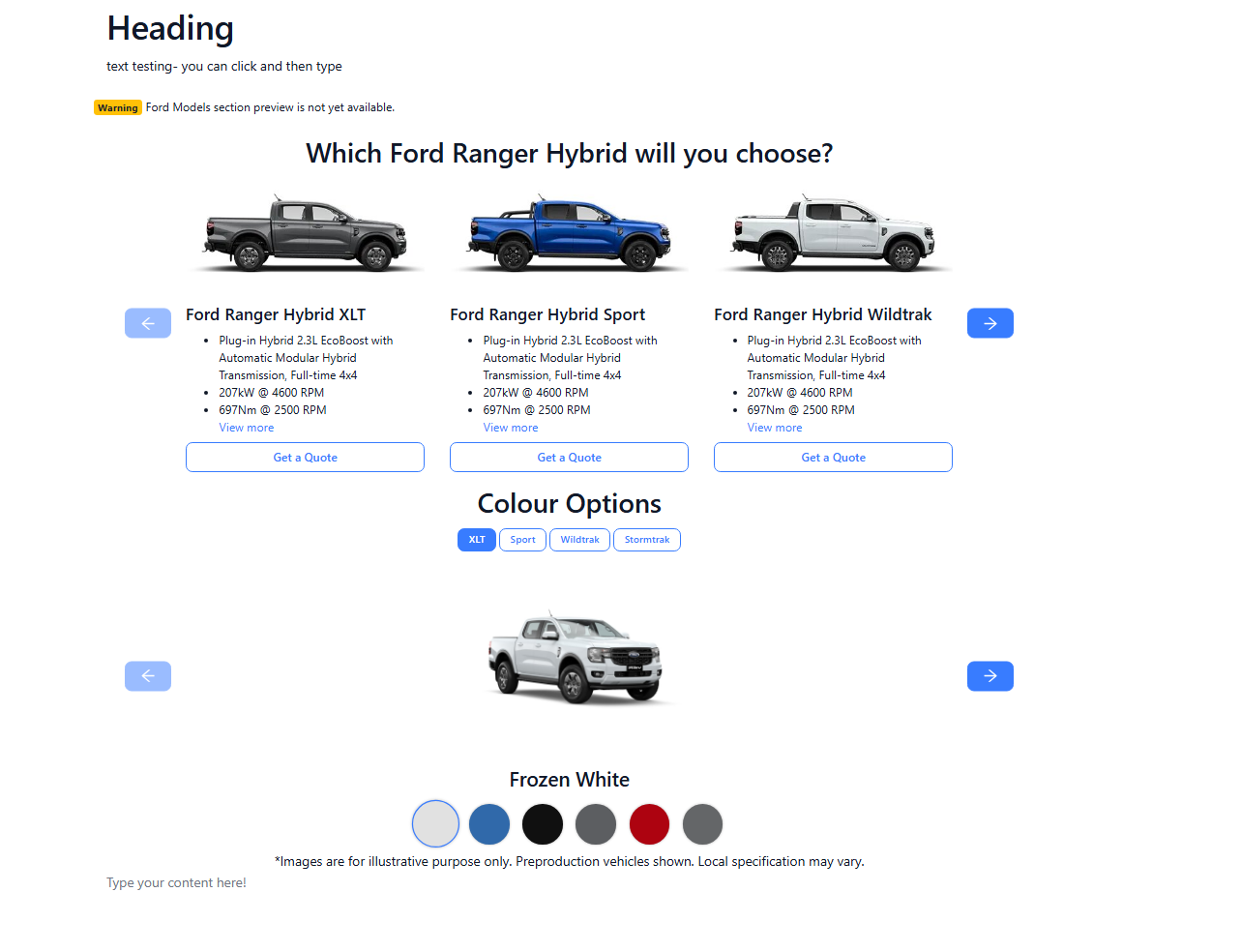 Please see attached video for clarity:
https://res.cloudinary.com/total-dealer/video/upload/v1763347280/Model_Variations_obehzg.mkv