The Stock Image Editor includes a Stickers feature that allows you to quickly add visual markers, icons, and highlights to your vehicle photos. These stickers can help draw attention to key details, making your images more engaging for customers browsing online.
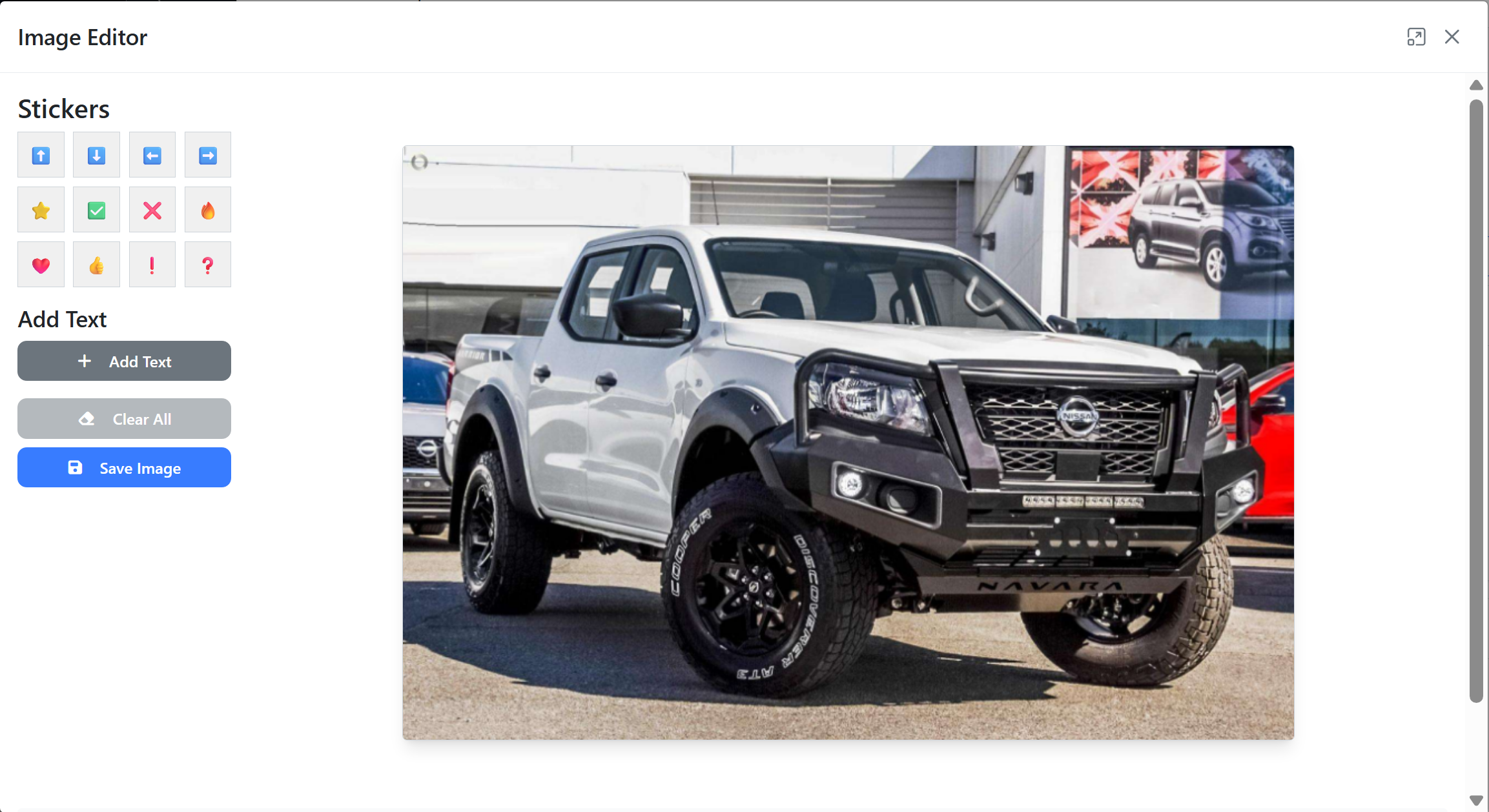
Within the Image Editor, you’ll find a selection of pre-set stickers including arrows, symbols, and emoji-style icons. You can also add text, clear all applied elements, and save the edited image directly back to the vehicle listing.
Follow the steps below to learn how to add stickers, reposition them, and customise your stock images effectively.
Finding the Stock to Edit
Step 1: On the Dealership Dashboard, select Stock
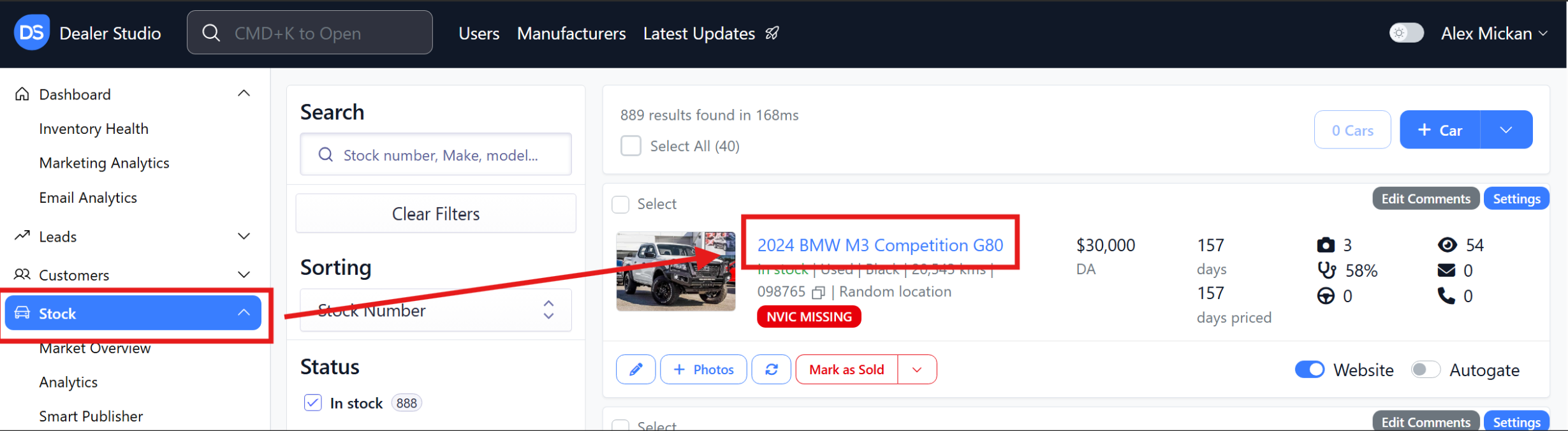
![]() Step 2: Search or select the stock you would like to work on
Step 2: Search or select the stock you would like to work on
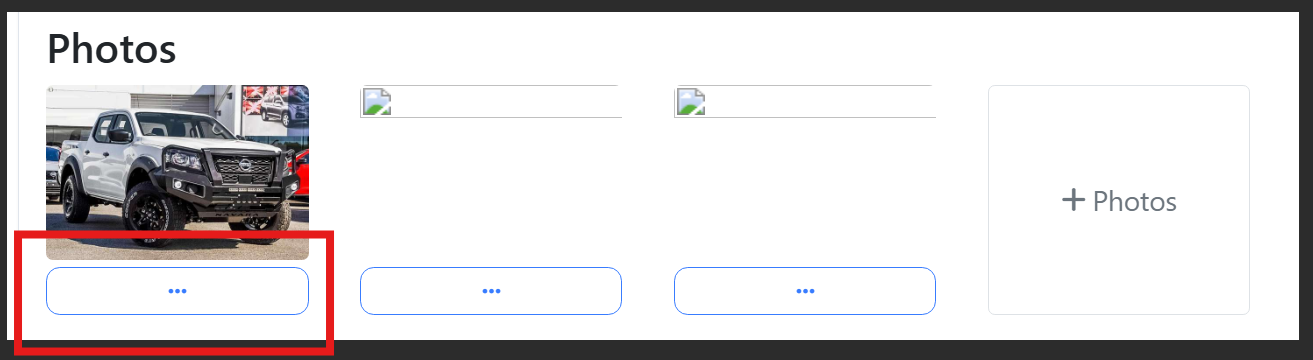
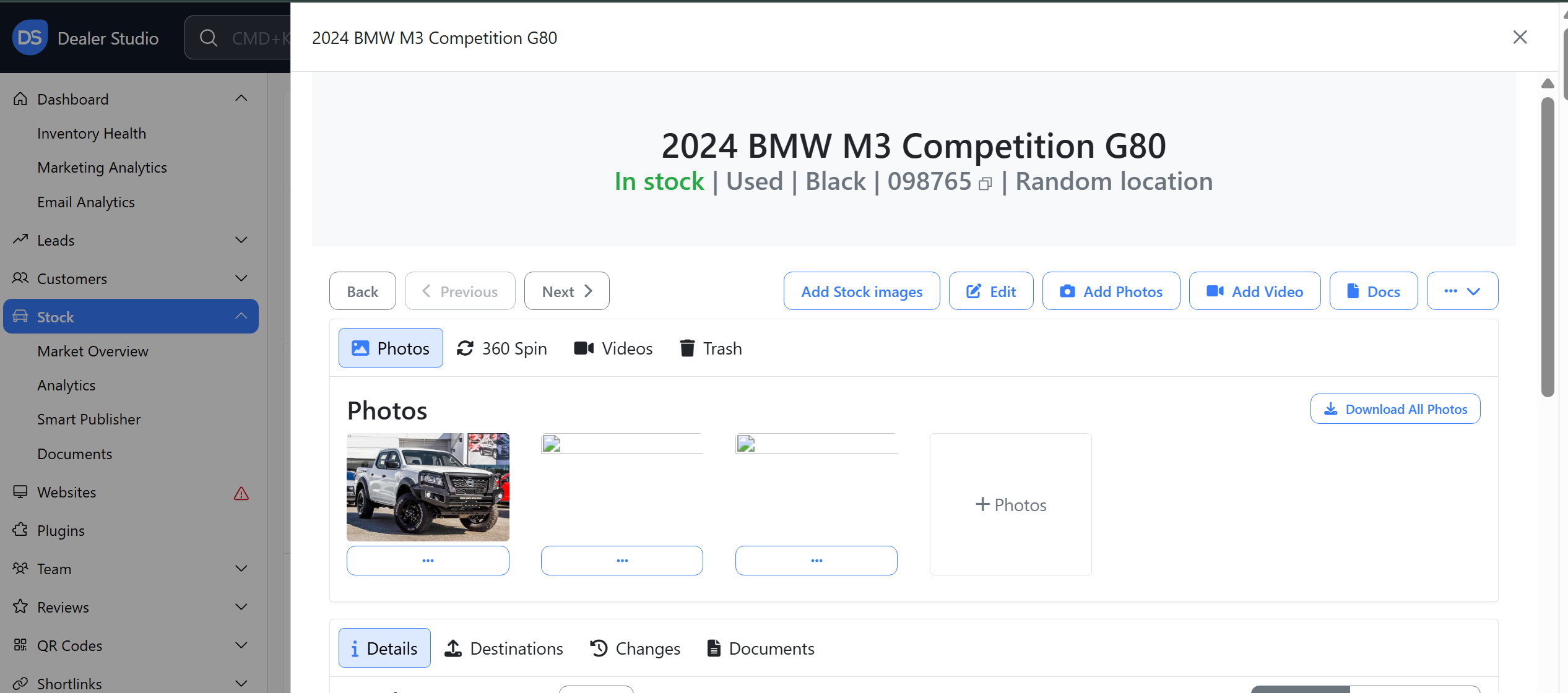 Step 3: Click the Three dots under the vehicle of your choice
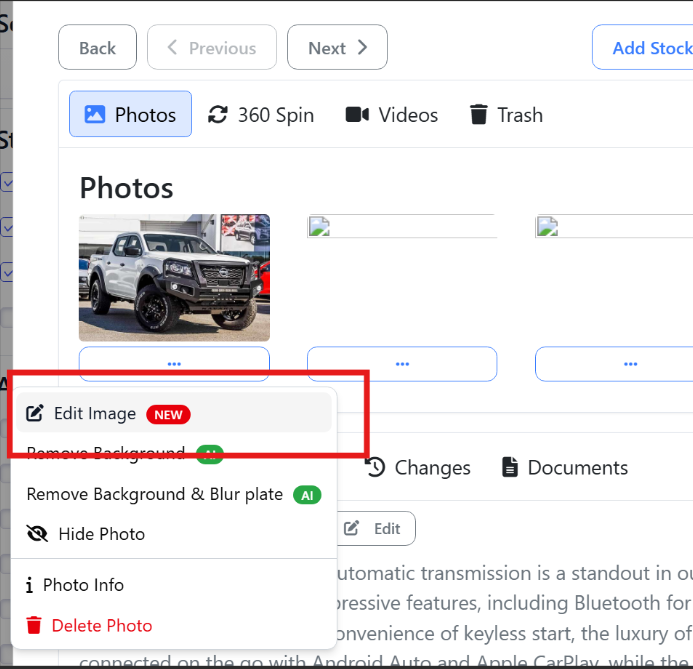
Step 4: Edit Image
Step 5: Add in stickers and text as seen fit;
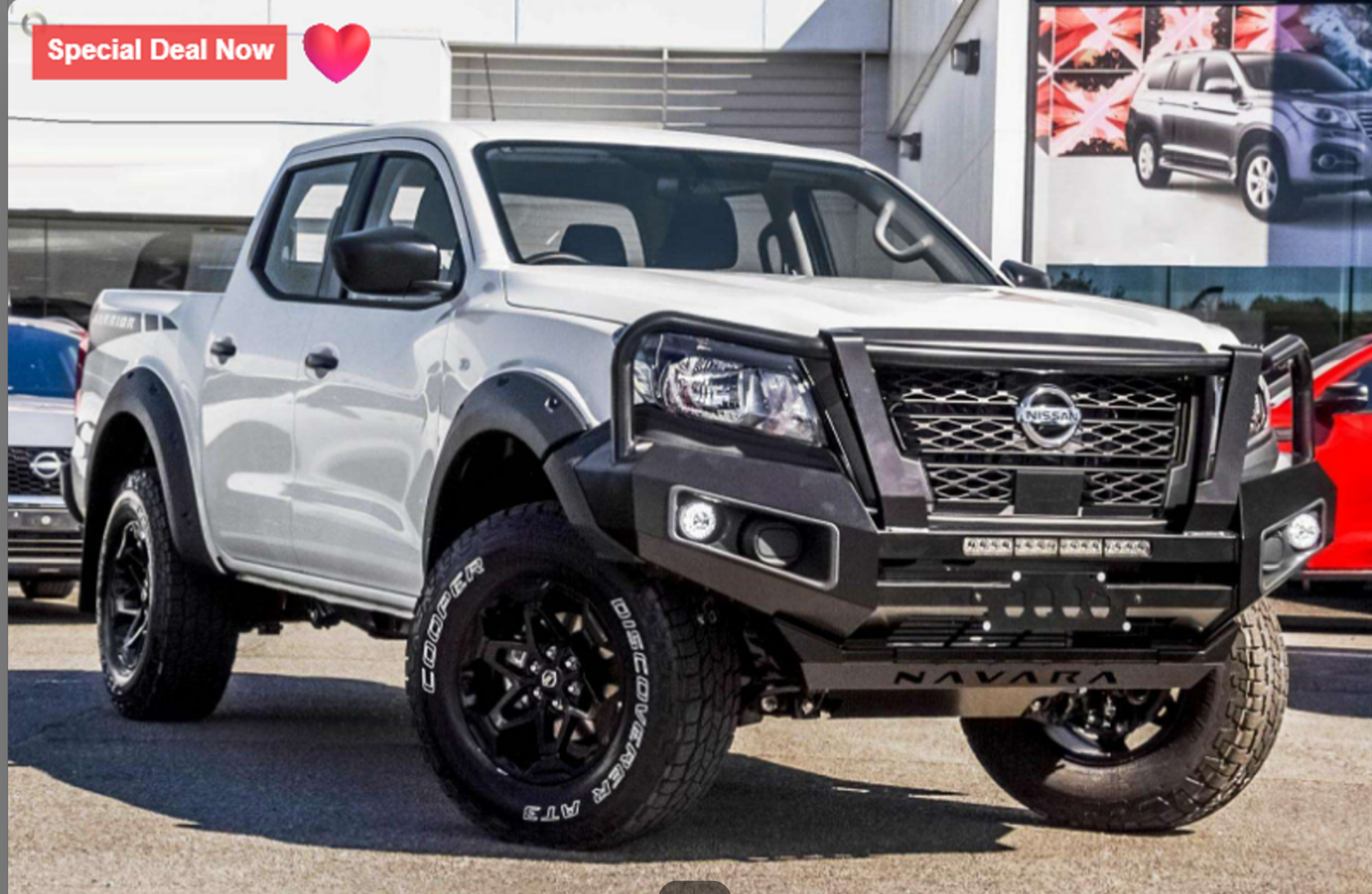
Step 6: Example Sticker placement
Please see video for clarity:
https://res.cloudinary.com/total-dealer/video/upload/v1763339587/Editing_Images_khrru8.mkv