Adding Special Offers via Page Editor
This guide will walk you through the steps to add and update special offers directly through the Page Editor. Keeping your special offers up to date is a great way to promote current deals, highlight seasonal campaigns, and engage customers visiting your website.
Using the Page Editor, you can easily upload images, update text, and link your offers to relevant vehicle listings or enquiry forms.
Follow the steps below to learn how to create, edit, and publish your special offers efficiently.
Finding the Page Editor
Step 1: On the Dealership Dashboard, select Websites
Step 2: Select the desired website to edit
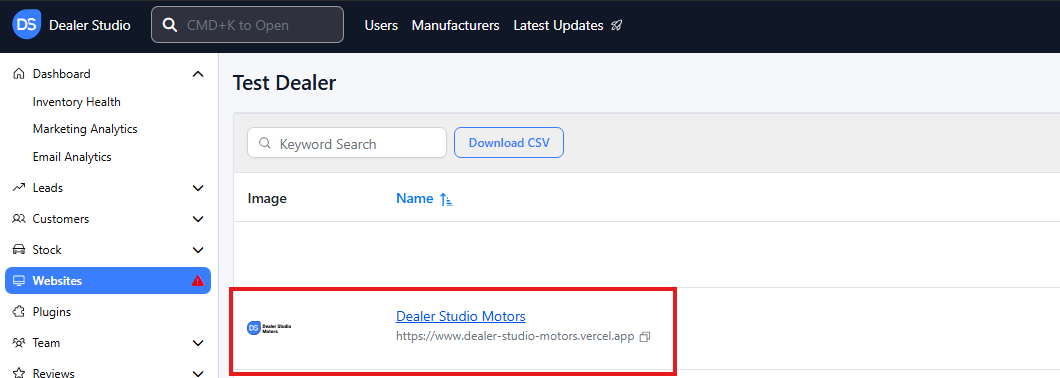
Step 3: Once on the Website Dashboard, select Pages
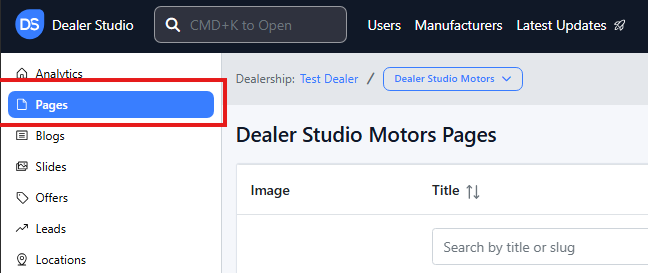
Step 4: Select the page you want to edit

How To Add Special Offers
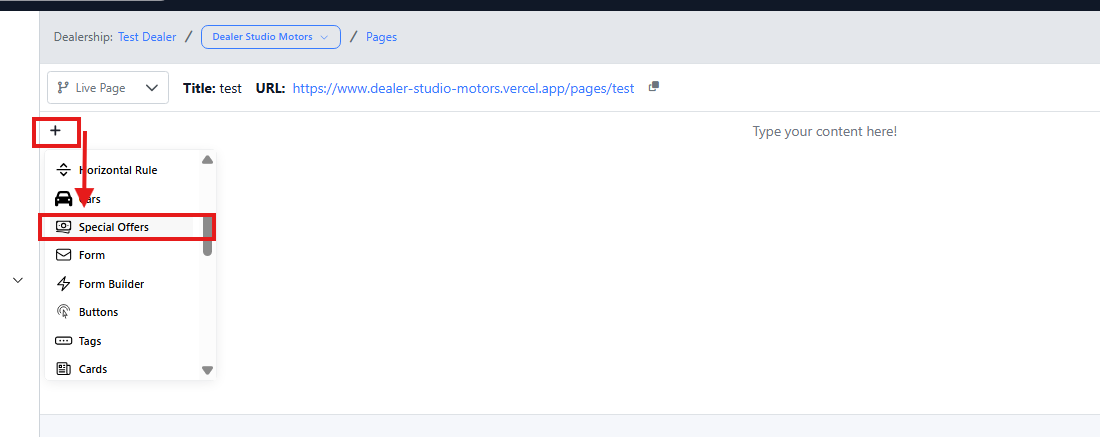
- Navigate to the desired area of the page. Hover your mouse over the left-hand side until the '+' icon appears. Click on the icon, then scroll down and select the Special Offers button.
A range of offers will appear on the page. Hover your mouse over the left-hand side until the 6 dots icon appears. Click on the icon, then select the Edit Settings button.
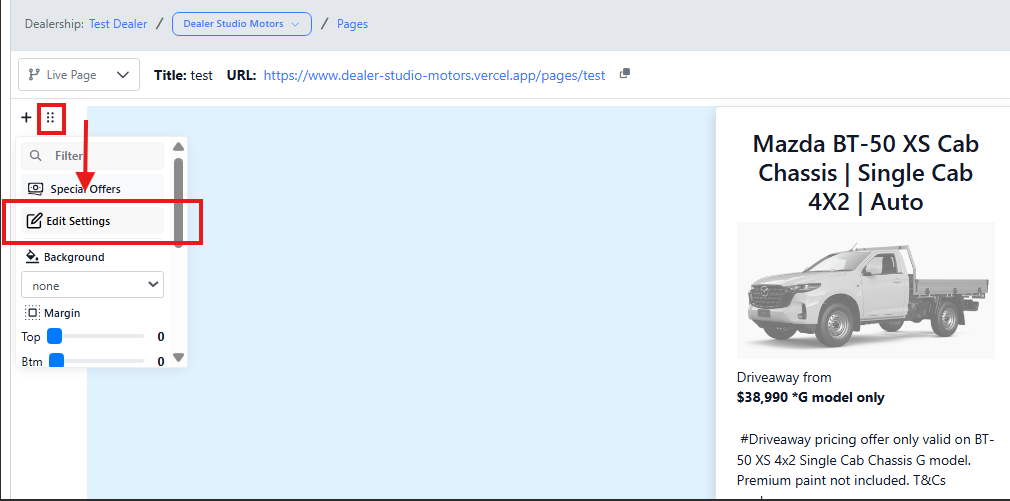
- A box will appear where you can customise your offers based on:
-
All Makes
-
All Models
-
All Bodies
-
All Categories
-
State
-
You can Filter how many offers show
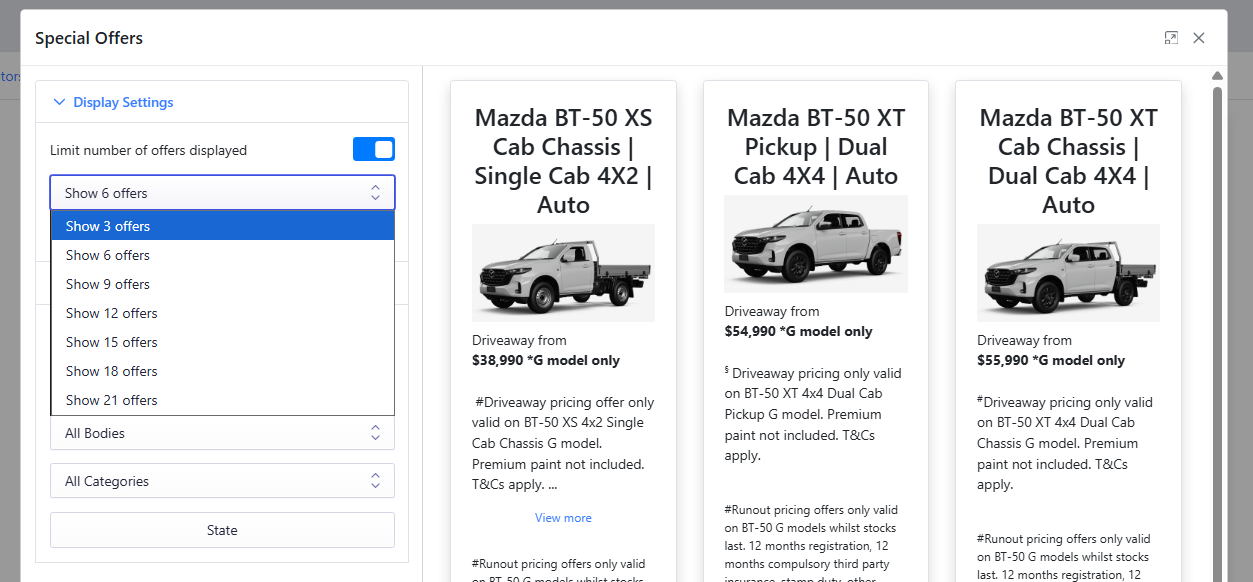 - Model Tabs filter via model type: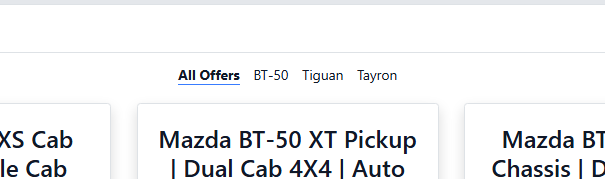
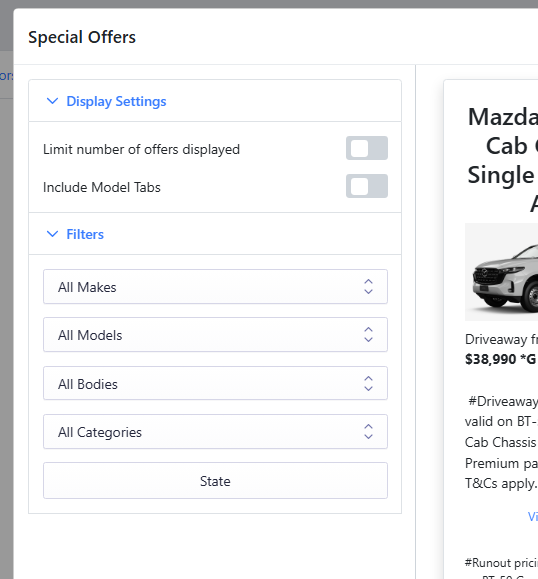
Once completed, all relevant special offers will be displayed on your page. To amend these in the future, simply return to the Edit Settings button and change the filters as required.
Please see attached video for reference.
https://res.cloudinary.com/total-dealer/video/upload/v1762997770/Adding_Offers_sz4ozv.mkv