Adding Images on the Page Editor
This guide will walk you through the simple steps to upload and insert an image onto any page within your website. Whether you’re adding visuals to enhance your content or updating existing images, this process is quick, easy, and can be done directly from your page editor.
Finding the Page Editor
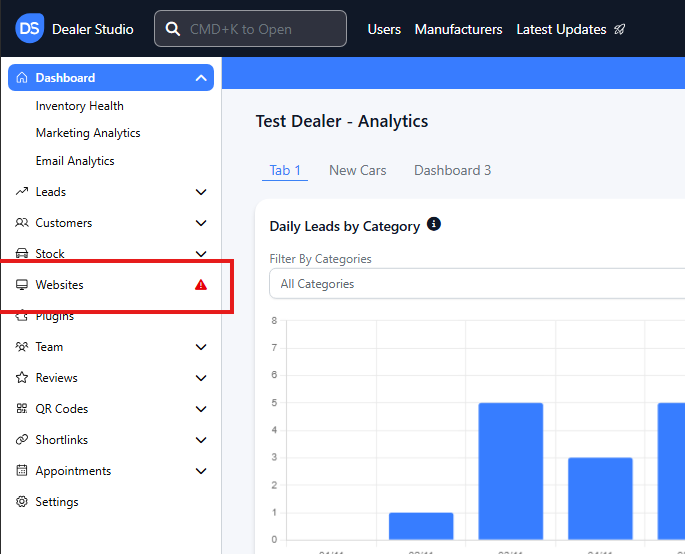
Step 1: On the Dealership Dashboard, select Websites
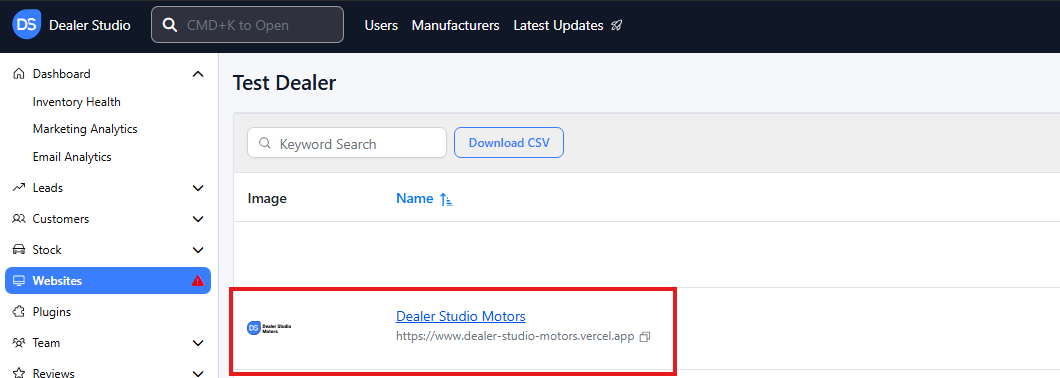
Step 2: Select the desired website to edit
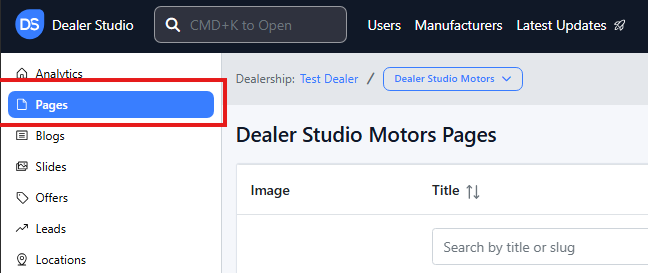
Step 3: Once on the Website Dashboard, select Pages
Step 4: Select the page you want to edit

How to Add Images
-
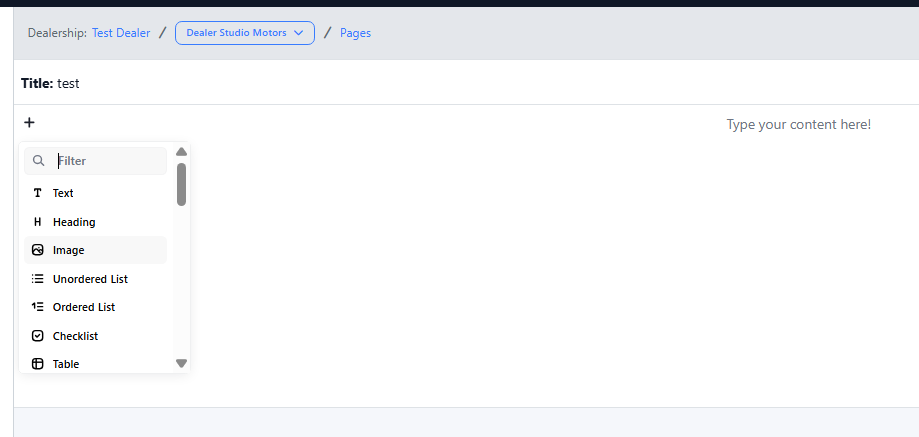
Navigate to the desired area of the page. Hover your mouse over the left-hand side until the '+' icon appears. Click on the icon, then scroll down and select the Images button.
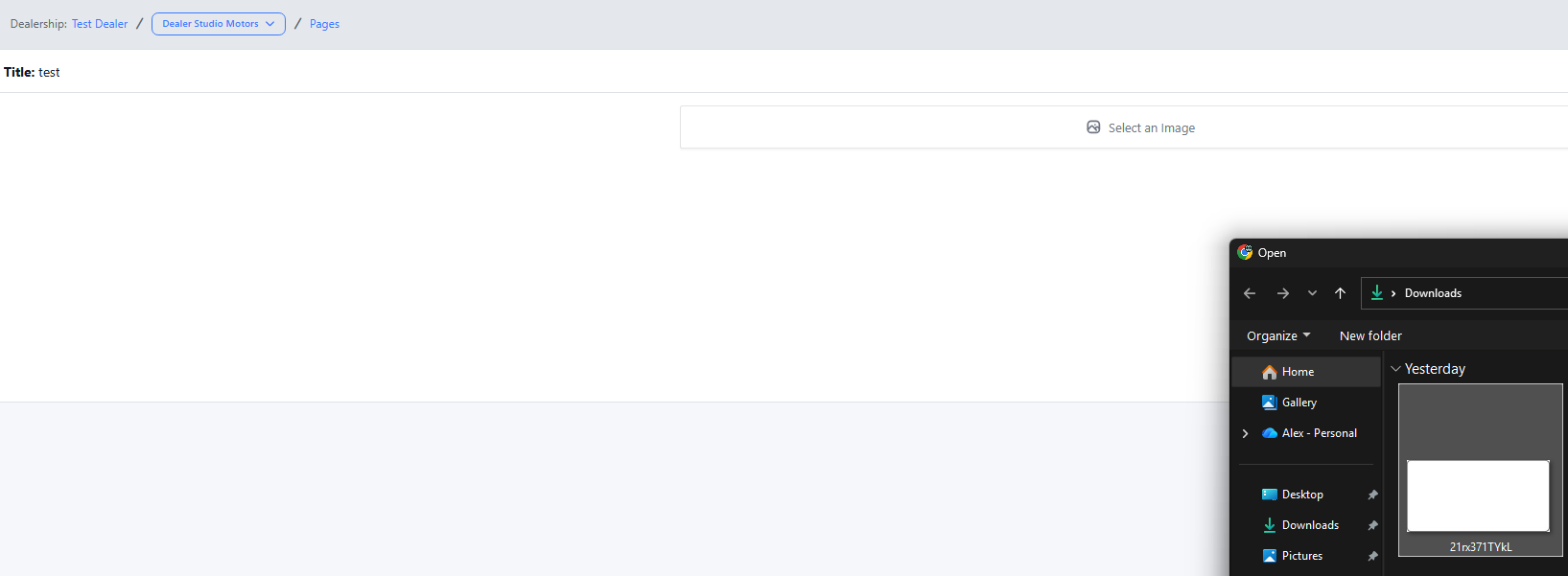
Upload your desired image.
-
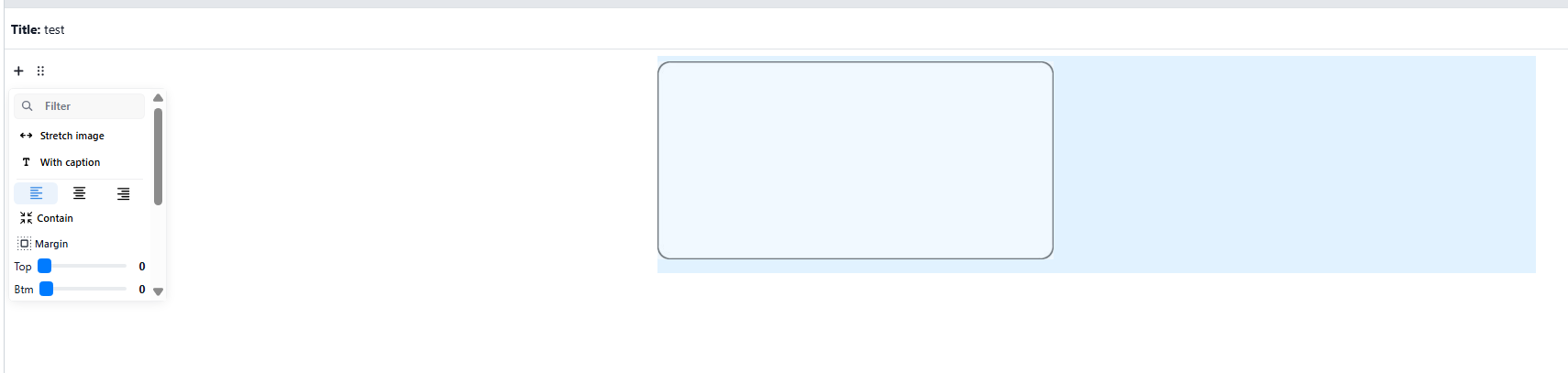
To edit the image, hover your mouse over the left-hand side of the page where this text is until the 6 dots icon appears. Here, you can edit the alignment, margins, and move the image above and below other sections.
Please see attached video on process.
https://res.cloudinary.com/total-dealer/video/upload/v1762991739/Adding_Images_dcvbb0.mkv