This article will show you how to add a new user into your dealership dashboard and manage users and their permissions.
*Note: You have to have manager permissions on the dashboard to add and edit users.
To add a new user:
-
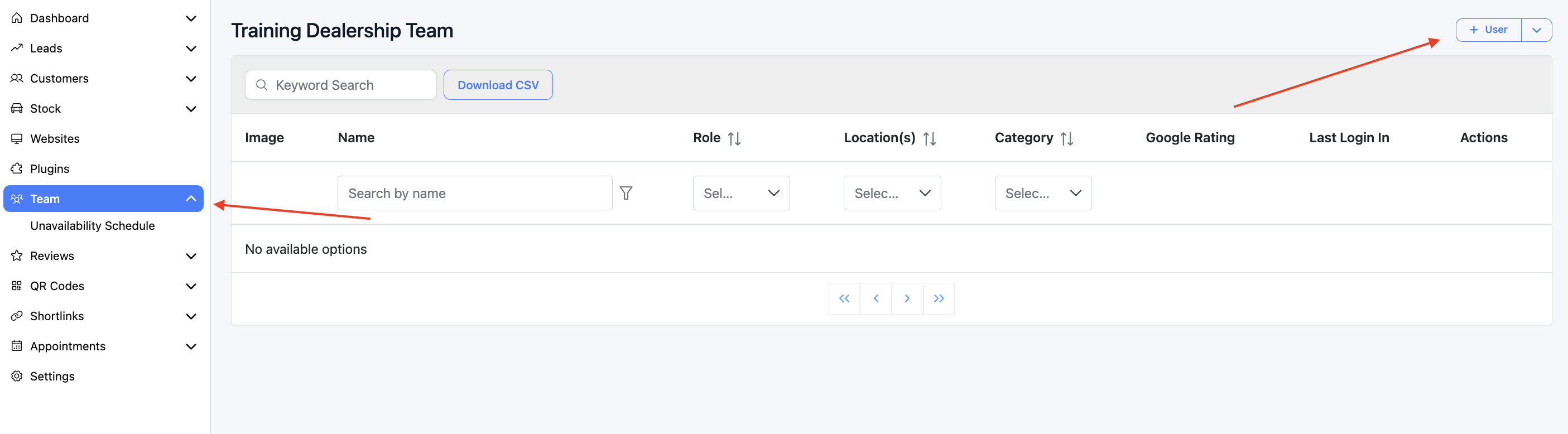
On your dashboard, head to Team > New User.
-
Enter the users Name, Email and Number.
*Use the Alias field if you have two team members with the same name that will receive reviews so our auto matching can differentiate. Example: if you have two users named Matthew, one can be "Matt" and the other "Matthew". -
Define the permissions and locations of this user.
Default permissions are most appropriate for staff who need to manage leads and stock.
Manager permissions are most appropriate for senior staff and marketing managers who need to update the website, location settings, stock rules, ect.
To further determine what a user should see, use the toggles, locations and lead categories that would be relevant to them.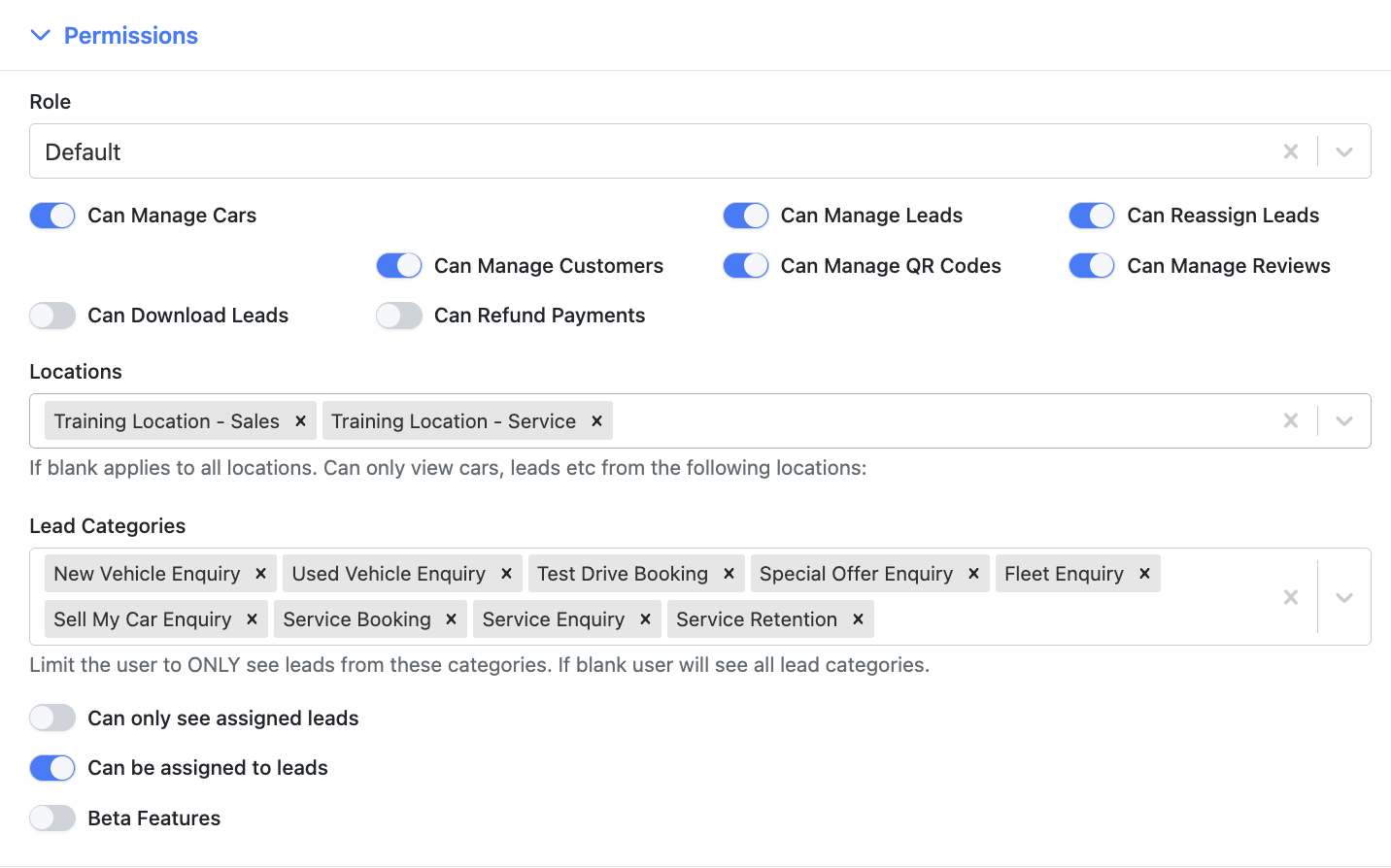
-
**Team Profile **
This will determine what shows on the website on your teams page. -
Save.
Once that is complete, that user will receive an email address to setup their profile and then they're in!